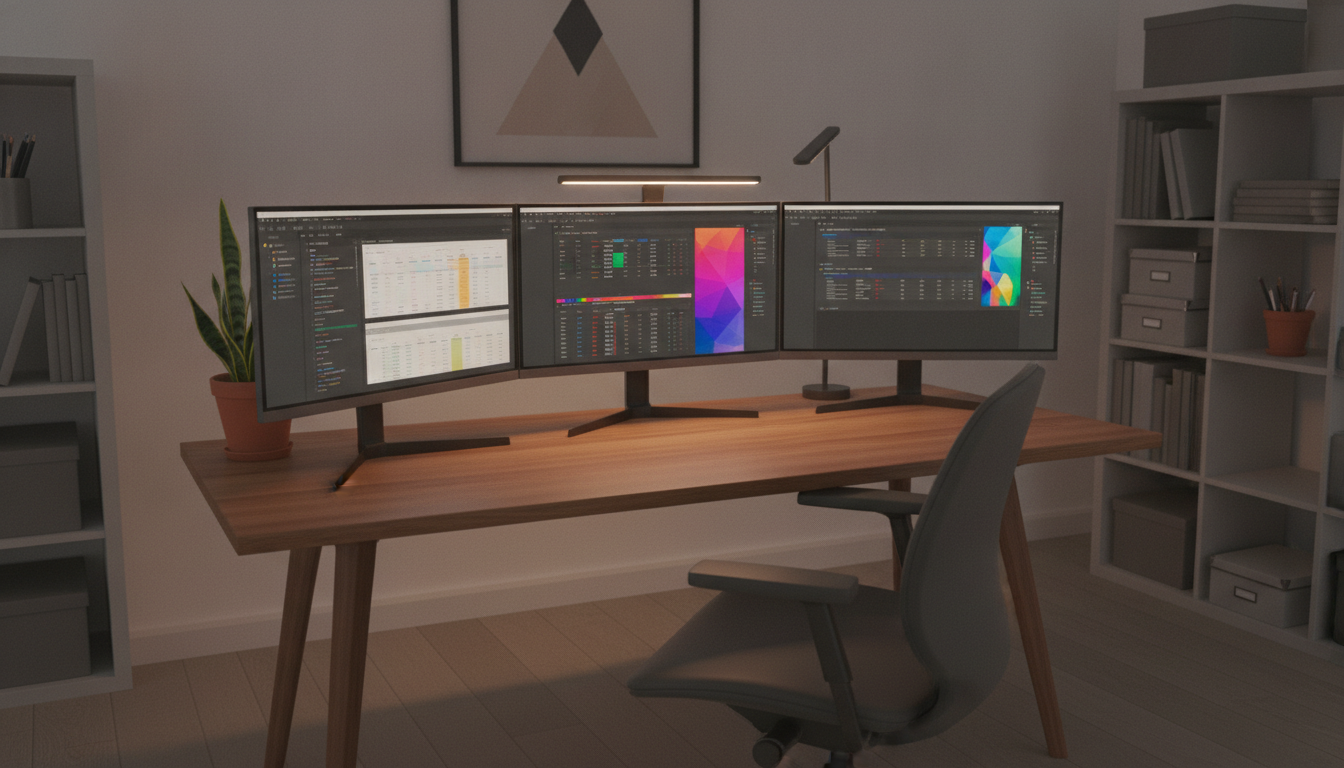

Want to upgrade your work-from-home setup without spending a lot? You can find great monitors for under $70. These monitors offer clear screens without breaking the bank.
The market for affordable monitors has changed a lot. Brands like Dell, BenQ, MSI, and Philips now offer great features at lower prices. You can find monitors under $200 with high resolutions and USB-C connectivity.
The Dell 27 Plus has an adjustable stand and sleek design for $175. The BenQ GW2486TC has USB-C with 65W power delivery. The Philips 221V8LB is just $69.99 with a 100Hz refresh rate. Each monitor offers great value.
This guide will help you find the perfect monitor for your home office. You’ll learn about the top picks, key features, and how to set them up. You’ll know exactly which monitor is right for you, your workspace, and your budget.
Key Takeaways
- Quality budget monitors for home offices are available from $70 to $200, covering screen sizes from 21.5 to 27 inches.
- The Dell 27 Plus (S2725HSM) stands out at $175 with its adjustable stand, 300 nits brightness, and dual HDMI ports.
- The BenQ GW2486TC offers USB-C with 65W power delivery, making it ideal for laptop users who want a single-cable setup.
- The MSI Pro 27 (MP273QW E14) delivers 1440p resolution at just $190, giving you sharper visuals for spreadsheets and documents.
- Features like 100Hz refresh rates, full sRGB color coverage, and AMD FreeSync are now standard in budget-friendly computer screens.
- Choosing the right affordable home office monitor depends on your priorities: resolution, connectivity, ergonomics, or price.
Why Choosing the Right Monitor Matters for Your Home Office
Your monitor is like a window to your work. The right one can change how you feel and work every day. Even cheap monitors can make a big difference if you know what to look for. Here are three reasons why your monitor choice is important.
Impact on Productivity
A bigger screen means less clicking and scrolling. A 32-inch screen can replace two monitors. It lets you see spreadsheets, tabs, and video calls all at once.
27-inch monitors with thin bezels make your workspace feel bigger. You can focus better without feeling cramped. This guide to the best monitors for a home office shows how important it is to choose right.
Reducing Eye Strain
Looking at screens for eight hours can hurt your eyes. The Dell UltraSharp U2723QE has ComfortView Plus to reduce blue light. Its matte coating also cuts down on glare in bright rooms.
BenQ monitors have eye care tech like flicker-free backlighting. These features help keep your eyes safe during long work hours.
Space Optimization
Not all home offices have a lot of space. 21.5-inch screens fit well in small areas. Ergonomic stands help you position the screen right, avoiding neck and back pain.
| Screen Size | Best For | Desk Depth Needed |
|---|---|---|
| 21.5 inches | Small desks, single-task work | 16 inches |
| 27 inches | Multitasking, video calls | 20 inches |
| 32 inches | Replacing dual monitors | 24 inches |
Choosing the right size keeps your desk clean and your work flowing. Knowing what features are important is the next step.
Key Features to Look for in Budget Monitors
Not every screen is worth your money. When looking for the best monitors under $200, some specs are key. Let’s explore what’s important.
Screen Size and Resolution
Value monitors usually have screens from 21.5 to 32 inches. A 24-inch screen is perfect for most desks. It’s big enough for work without taking up too much space.
For resolution, 1080p (Full HD) is the top choice in this price range. This guide to GPU and monitor pairing shows 1080p is good for 75Hz displays and saves money. Some monitors offer 1440p for sharper images.
Refresh Rate and Response Time
Refresh rate shows how many times the screen updates per second. The MSI Pro MP243W E14 has 144Hz for just $99. It’s a top pick among the best monitors under $200. For office work, 75Hz is enough.
Response time is crucial for fast work or casual gaming. Here’s a quick comparison:
| Use Case | Ideal Response Time | Recommended Refresh Rate |
|---|---|---|
| Office / Productivity | 5ms | 60–75Hz |
| Casual Gaming | 4ms | 75–144Hz |
| Competitive Gaming | 1ms | 144–280Hz |
Connectivity Options
Ports are important for your setup. Look for these in value monitors:
- USB-C with power delivery — the Dell P2725HE charges laptops at 90W and has an ethernet port
- DisplayPort-out — BenQ GW2486TC supports daisy-chaining for multi-monitor setups
- HDMI and VGA — standard on most Philips budget displays for older devices
Choosing the right ports now saves you from buying adapters later. With these tips, you’re ready to compare models.
Top 5 Budget Monitors for Home Offices

You don’t have to spend a lot to get a good display for your home office. These affordable monitors work well and are easy on your wallet. Each one has its own special features.
Dell 27 Plus (S2725HSM)
The Dell 27 Plus is just $175. It has a clear 1080p display and shines brightly at 300 nits. It also has an adjustable stand and can be mounted on a VESA mount. This makes it great for a budget setup where you need to move things around.
MSI Pro 27 (MP273QW E14)
The MSI Pro 27 is $190. It has a 1440p resolution and shines at 427 nits. It’s also very good at showing colors. This makes it perfect for people who make content and want a sharp image.
Lenovo Legion R27fc-30
This Lenovo screen is $170. It has a fast 280Hz refresh rate and a curved VA panel. It’s great for both work and gaming. If you do both, this is a top choice.
MSI Pro 24 (MP243W E14)
The MSI Pro 24 is only $99. It has a big 23.8-inch IPS panel that shines at 359 nits. It also has good contrast and color coverage. It’s perfect for a budget setup where you want two good screens.
| Monitor | Price | Resolution | Panel Type | Brightness |
|---|---|---|---|---|
| Dell 27 Plus S2725HSM | $175 | 1080p | IPS | 300 nits |
| MSI Pro 27 MP273QW | $190 | 1440p | IPS | 427 nits |
| Lenovo Legion R27fc-30 | $170 | 1080p | VA | 300 nits |
| MSI Pro 24 MP243W | $99 | 1080p | IPS | 359 nits |
Choosing the right monitor is important. But setting it up correctly is just as key.
How to Set Up Your Monitor Effectively

Getting the right screen is just the start. How you set up your monitor is key to comfort and work quality. A few smart choices can make any monitor a powerful tool.
Ergonomic Positioning
Put the top of your screen at or just below eye level. This keeps your neck straight and avoids strain. Monitors like the BenQ GW2486TC have adjustable stands.
If your monitor has a fixed stand, a separate arm like the BenQ BSH01 offers flexibility. Look for VESA 75×75 or 100×100 mounting patterns in affordable monitors.
Dual Monitor Setup Considerations
Two screens can improve your work by letting you see documents and work on another screen. DisplayPort daisy-chaining makes wiring easier. A single USB-C cable can power and display for modern laptops.
For using two computers, a KVM switch for dual monitors lets you share one set of keyboard, mouse, and display. This saves space and keeps things tidy.
| Connection Method | Best For | Cable Count |
|---|---|---|
| USB-C | Modern laptops needing power + display | 1 per monitor |
| DisplayPort Daisy-Chain | Multi-monitor setups with fewer cables | 1 per link |
| KVM Switch | Sharing peripherals across 2+ computers | Varies by model |
Cable Management Tips
Tangled cables are messy and hard to fix. Many Dell monitors have built-in cable channels. Use velcro ties or clips to keep cords tidy.
- Route cables behind the monitor arm or stand
- Label each cable near its plug for quick identification
- Choose affordable home office monitors with integrated cable management features
Understanding Resolution Types

When you look for affordable computer screens, resolution is key. It makes text clear and images sharp. The right resolution makes your screen worth the money.
Full HD vs. 4K
Full HD (1920×1080) is common in screens under $100. It’s good for emails, spreadsheets, and web pages. A 24-inch Full HD screen shows text well.
QHD (2560×1440) is a great choice for home office needs. You can find QHD screens for $150–$200. A 27-inch QHD screen makes text sharper without costing too much.
4K (3840×2160) offers amazing detail. Text is clear, and images are vivid. Remember, pixel density is as important as resolution. A 27-inch 1080p screen has lower pixel density than a 24-inch 1080p one.
| Resolution | Pixel Count | Best Screen Size | Typical Price Range |
|---|---|---|---|
| Full HD | 1920×1080 | 22–24 inches | $80–$130 |
| QHD | 2560×1440 | 27 inches | $150–$250 |
| 4K UHD | 3840×2160 | 27–32 inches | $250–$400 |
Aspect Ratios Explained
Most screens have a 16:9 aspect ratio. This is the common widescreen format from brands like Dell, LG, and ASUS.
A 16:10 ratio gives more vertical space. This lets you see more of a page without scrolling. If you spend a lot of time reading or writing, 16:10 is a big plus.
- 16:9 — Best for general use, video calls, and entertainment
- 16:10 — Ideal for document-heavy workflows and coding
- 21:9 ultrawide — Great for multitasking with side-by-side windows
Choosing the right resolution and aspect ratio makes your screen comfortable and efficient. Once you find the right display, focus on color accuracy next.
The Importance of Color Accuracy
Color accuracy is key for good on-screen work. It’s important for reviewing client work or editing photos. Even cheap monitors now show colors well, like premium screens used to.
What to Look For
Look at sRGB coverage first. A monitor covering 99% of sRGB shows colors as they really are. The MSI Pro 24, for example, covers 99% sRGB and 77% AdobeRGB, which is great for its price.
Check the Delta-E values too. A Delta-E of 2 or less means colors look almost the same to our eyes. The MSI Pro 24 has a Delta-E of 1.35, making it good for emails and presentations.
Panel type is also important. IPS panels offer wide viewing angles, keeping colors consistent. VA panels have high contrast ratios, making blacks deeper. Both are good for home setups.
Benefits for Creative Work
For photo or video editing, color accuracy is crucial. The BenQ PD3225U covers 98% DCI-P3, 99% sRGB, and 99% Rec.709. It comes with factory calibration, ensuring colors are accurate right away.
Even budget monitors can handle basic creative tasks. You can crop images, adjust brightness, and tweak contrast with monitors in the $150–$300 range.
| Monitor | sRGB Coverage | Delta-E | Panel Type | Best For |
|---|---|---|---|---|
| MSI Pro 24 | 99% | 1.35 | IPS | Office work, presentations |
| BenQ PD3225U | 99% | ≤2 (factory calibrated) | IPS | Photo editing, video work |
Reviews: Real User Experiences
Real-world feedback is more valuable than specs. People who bought cheap office displays share their good and bad experiences. Their stories can help you save time and money. Here’s what they say after using some of the best monitors under $200 and more.
What Users Love Most
The BenQ 27-Inch IPS Monitor at $120 is loved for its nice colors and steady performance with a MacBook. People say it’s a smart pick for those who want a good screen without spending too much.
BenQ monitors are also great for Mac users because of the DisplayPilot 2 app. It makes adjusting settings easy without using on-screen menus. The Asus 24-inch IPS Monitor at $150 is known for lasting a long time and being easy to mount for better ergonomics.
Frustrations Worth Knowing
No cheap screen is perfect. Here are some common problems:
- Short USB-C cables that make your desk messy
- Faint shadows on the edges of the screen, more on cheaper panels
- VA panels don’t look good when you’re not right in front of them
- Small OSD buttons are hard to press, many prefer a mini-joystick
- The built-in speakers sound thin and hollow
Windows users say some Mac-focused monitors don’t work as well on their platform. Some monitors show colors that are too bright right out of the box. But, changing the display settings usually fixes this.
These real experiences show that cheap office displays are great for everyday use. Knowing the downsides helps you choose the right screen for your needs.
Price vs. Performance: Finding the Balance
Finding the best value in monitors means looking at cost and quality. There’s a perfect spot where price meets performance. Let’s explore how to find great deals on work-from-home monitors.
Evaluating Cost-Effective Options
Monitors under $100 usually have 1080p resolution. The Philips 221V8LB at $69.99 is a good choice for those on a tight budget. It’s perfect for simple tasks.
Spending between $150 and $200 gives you more options. You get better resolution, USB hubs, and faster refresh rates. This range is the best for finding affordable monitors that boost productivity.
| Price Range | Resolution | Key Features | Best For |
|---|---|---|---|
| Under $100 | 1080p | Basic connectivity, tilt stand | Simple office tasks |
| $150–$200 | 1080p–1440p | USB-C, ergonomic stand, higher refresh rate | Multi-tasking professionals |
| $300+ | 4K and above | OLED, wide color gamut, premium build | Creative and design work |
Long-Term Investment Considerations
Don’t just look at the price. You might need stands, cables, or adapters, which add to the cost. USB-C connectivity can save money by reducing the need for extra adapters.
Monitors from brands like Philips come with four-year warranties. Most others offer three years. This extra year of coverage is a great deal.
- Ergonomic features reduce health-related expenses down the road
- Higher resolution screens offer better future-proofing as software demands grow
- Built-in USB hubs cut the need for separate docking stations
Choosing the right monitor is about looking at the whole picture. Spending a bit more upfront on good monitors can save you money in the long run. It’s about finding the best value for your money.
Maintenance Tips for Longevity
Keep your affordable home office monitors working well for years. Just a few simple steps can help. These habits will protect your investment and keep your display looking great every day.
Regular Cleaning
Use a microfiber cloth to gently wipe your screen. Glossy screens show smudges quickly, so clean them weekly. Displays with a Nano Matte coating, like BenQ’s, fight off fingerprints better.
Dust the vents on the back of your monitor. This helps prevent overheating and keeps air flowing well.
Software Updates and Drivers
Look for firmware updates from your monitor’s maker every few months. BenQ users can use DisplayPilot 2 to manage settings from a Mac. On Windows, adjust your resolution and refresh rate in Display Settings.
Calibrate your colors often. This keeps your budget dual monitor setup accurate for work and creative projects.
If you see flickering or signal drops, check your cables first. Loose HDMI or USB-C cables often cause problems. Keeping cables tight and drivers up to date keeps your screens working well.