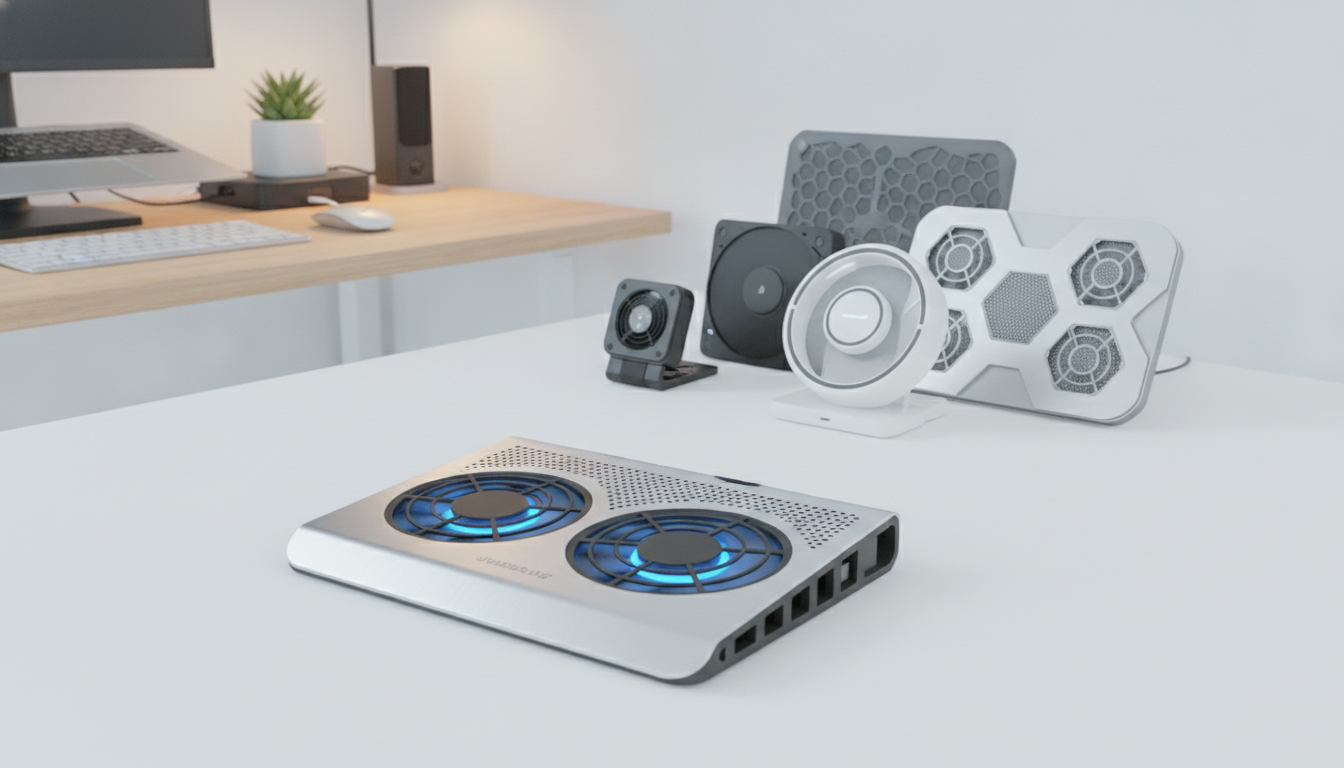
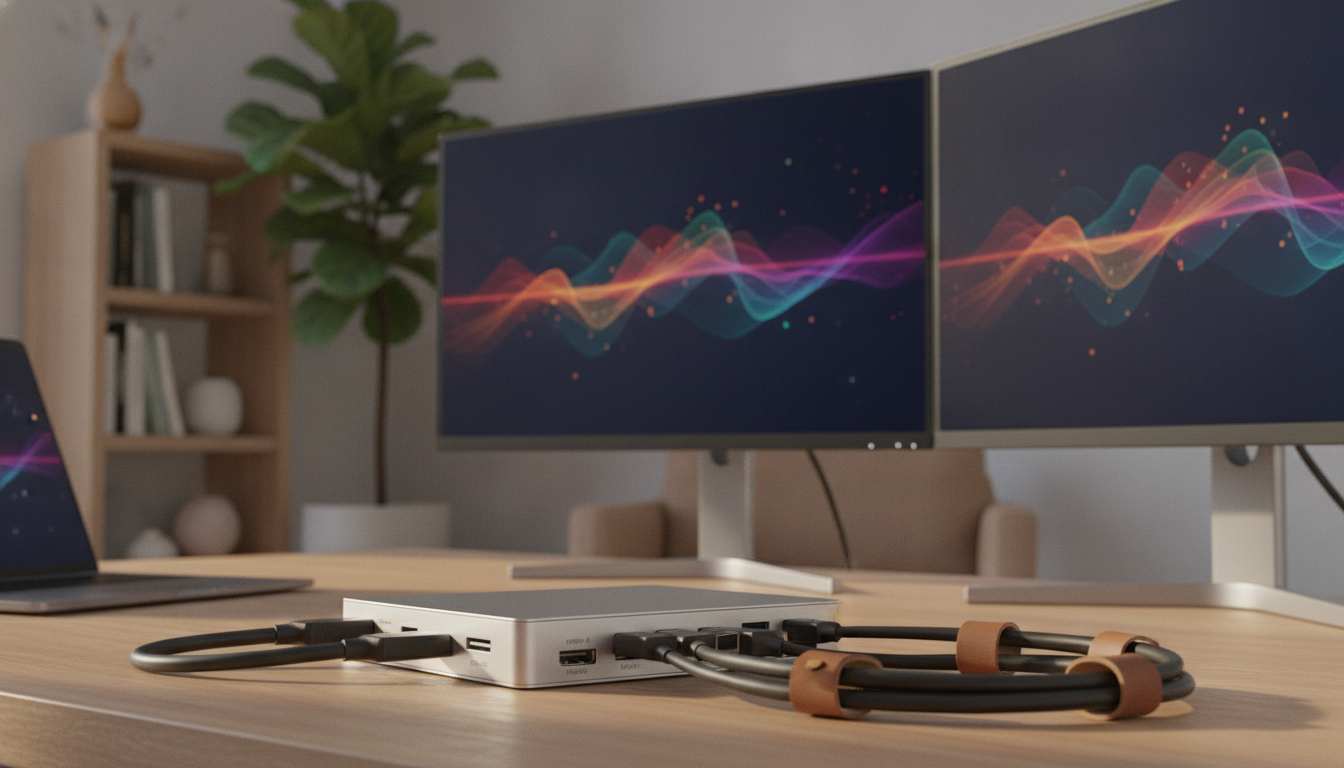
What if one cable could replace all your desk adapters? It could power a triple-monitor setup at once.
Today’s best USB-C docking stations do just that. They connect your laptop to many 4K displays, fast devices, and charge it quickly. You can pick a cheap option like the iKling 9-in-1 for $30 or a top-notch CalDigit TS4 for $450. The right dock changes how you work.
Laptop docking stations are now a must-have. They help you run dual or triple screens smoothly. For example, Plugable’s USB-C Triple 4K Monitor dock has 13 ports and 100W power. It means fewer cables and more room for your work.
Speed is as important as the number of ports. A thunderbolt 3 docking station can move data at up to 40 Gbps. This makes video smoother and files transfer faster. CalDigit’s TS4 Thunderbolt 4 dock has 18 ports and can charge a MacBook Pro all day without needing a separate charger.
Before you buy, check if your laptop supports USB-C Alt Mode or Thunderbolt. Your operating system and how many monitors you want will help choose the right dock. This guide helps you make a smart choice.
Key Takeaways
- A USB-C docking station connects your laptop to many 4K monitors, devices, and power through one cable.
- Thunderbolt 3 and 4 docks move data up to 40 Gbps, great for high-resolution setups.
- Prices start at $30 for basic hubs and go up to $450 for top docks like the CalDigit TS4, so there’s something for every budget.
- Look for docks with at least 90W power delivery if you’re charging a 14-inch or 16-inch MacBook Pro.
- Make sure your laptop supports USB-C Alt Mode or Thunderbolt before buying a dock to avoid display issues.
- USB-C docks are more affordable, while Thunderbolt docks offer better speed and support for more displays.
What is a USB-C Docking Station?
A usb type-c dock is a single hub. It turns one port on your laptop into a full desktop experience. It connects all your peripherals like monitors, keyboards, and drives with one cable.
Definition and Purpose
A universal usb-c dock is a hardware accessory. It expands your laptop’s connectivity. You plug one USB-C or Thunderbolt cable into your computer.
It gives you access to many ports like HDMI, DisplayPort, and USB-A. You also get Ethernet, SD card slots, and audio jacks.
Its purpose is simple: eliminate the clutter of adapters and dongles. One device handles everything your workstation demands.
Key Features
Not all docks are built the same. The features below highlight what sets quality options apart:
| Feature | USB-C Dock | Thunderbolt 4 Dock | Thunderbolt 5 Dock |
|---|---|---|---|
| Data Transfer Speed | 5–10 Gbps | 40 Gbps | 80–120 Gbps |
| Video Output Support | Requires Alt Mode | Native | Native |
| Typical Port Count | 6–8 ports | 10–12 ports | 12+ ports |
| Power Delivery | Up to 60W | Up to 96W | Up to 140W |
| Price Range | $40–$100 | $150–$350 | $300–$450 |
A usb type-c dock at the basic level requires your laptop to support Alt Mode for video and power transfer. Thunderbolt docks deliver faster speeds and broader compatibility right out of the box.
Common Uses in Work and Entertainment
A dual monitor docking station creates an expanded digital workspace. It boosts your output. You can run spreadsheets on one screen and video calls on another — no lag, no switching.
- Remote work setups with two or three monitors
- Creative editing with dedicated screens for timelines and previews
- Gaming rigs that connect controllers, headsets, and displays
- Presentations using external projectors or conference room displays
Whether you work from home or a shared office, a dual monitor docking station keeps your desk clean and your workflow fast. Understanding these basics helps you pick the right features — which we cover next.
Benefits of Using a USB-C Docking Station
A USB-C docking station turns your laptop into a full desktop. It uses one cable instead of many. This gives you power, data, and display all at once.
Enhanced Connectivity
A good multi-port usb-c adapter adds ports your laptop lacks. You get USB-A, HDMI, DisplayPort, Ethernet, SD card slots, and audio jacks. The CalDigit TS4 has independent headphone and microphone ports and an SD card reader.
Many docks have 2.5 Gigabit Ethernet for fast network speeds. You can check top-rated docking stations for 13-inch laptops to find what you need.
Improved Productivity
More screens help you focus better. A usb-c hub can support dual 4K or a single 8K display. Thunderbolt 5 stations like the Kensington SD5000T5 can handle three 4K or two 8K displays with 140W charging.
Pass-through charging up to 100W keeps your laptop charged. You don’t need a separate charger.
Streamlined Workspaces
Docks like the Plugable Triple Display save desk space with a vertical orientation design. Front-facing ports are for devices you plug and unplug often. Rear ports are for permanent connections like monitors and Ethernet.
| Benefit | What It Means for You | Example Feature |
|---|---|---|
| Single Cable Setup | Less clutter, faster daily routine | USB-C connection for data + power |
| Multi-Display Support | More screen space, better multitasking | Dual 4K or single 8K output |
| Pass-Through Charging | No separate charger needed | Up to 100W Power Delivery |
| Compact Footprint | Cleaner, more organized desk | Vertical orientation design |
| Fast Networking | Reliable wired internet for calls and transfers | 2.5 Gigabit Ethernet port |
Top Features to Consider
Not every usb-c charging dock is the same. The right one depends on your daily needs. Look at ports, power, and size before buying.
Ports and Connectivity Options
Your dock needs the right ports for now and later. Find USB-C 3.2 Gen 2 ports for fast speeds. Also, USB-A 3.0 ports are good for older devices.
A Gigabit or 2.5 Gigabit Ethernet port keeps your internet fast. DisplayPort 1.4 and HDMI 2.0 are great for screens. A thunderbolt 3 docking station can handle two 4K screens or one 5K screen.
| Port Type | Max Speed | Best For |
|---|---|---|
| USB-C 3.2 Gen 2 | 10 Gbps | Fast file transfers |
| USB-A 3.0 | 5 Gbps | Legacy peripherals |
| Thunderbolt 3 | 40 Gbps | Multi-monitor setups |
| DisplayPort 1.4 | 32.4 Gbps | 8K displays |
Power Delivery Capability
A good usb-c charging dock powers your laptop. Budget docks offer about 85W. The Kensington SD5000T5, a Thunderbolt 5 dock, gives up to 140W.
Compact Design and Portability
Desk space is precious. Look for small docks like the iKling. It’s just 5.4 × 2.4 × 0.75 inches and fits in a bag. Vertical docks like the Plugable Triple Display Dock save space.
- Find a Kensington Security Slot for theft protection
- MAC Address Pass-Through helps with network access
- Light docks under one pound are easy to carry
Choosing the right features is key. This sets you up for success with the docking stations we review next.
Best USB-C Docking Stations on the Market
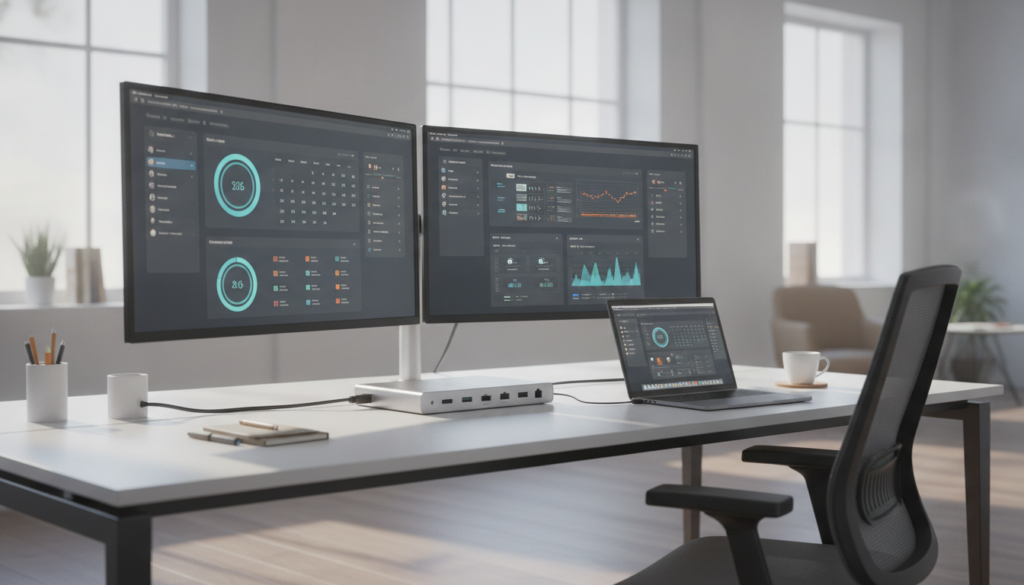
Finding the right laptop docking station usb-c can be hard. There are many choices at different prices. Here are three top picks that offer great value.
CalDigit TS3 Plus
The CalDigit TS3 Plus is great for creative people. It has 15 ports, including fast Thunderbolt 3 and DisplayPort 1.4. It also charges your laptop up to 87W all day.
This docking station works well with two monitors. It’s made of aluminum, feels high-quality, and keeps cool. If you need fast speeds and reliability, choose this.
Anker PowerExpand Elite
Anker’s PowerExpand Elite is a good mix of price and features. It supports two 4K displays and charges up to 85W. It has USB-A, USB-C, Ethernet, and audio ports.
This docking station is perfect for those who want a tidy desk. It’s small but has all the ports you need.
Plugable USB-C Triple Display Dock
The Plugable USB-C Triple Display Dock supports three 4K displays at 60Hz. It’s priced around $230 and has HDMI, DisplayPort, and 100W power delivery. A 135W adapter is included.
This docking station is great for those who need three screens.
| Feature | CalDigit TS3 Plus | Anker PowerExpand Elite | Plugable Triple Display |
|---|---|---|---|
| Max Displays | 2 | 2 | 3 |
| Power Delivery | 87W | 85W | 100W |
| Total Ports | 15 | 13 | 11 |
| Price Range | $300+ | $250 | $230 |
| Best For | Creative Pros | Office Workers | Multi-Screen Users |
Compatibility with Devices
Not every device works well with every dock. Before buying a usb type-c dock, check if it fits your device. Most modern devices with USB-C ports work well.
Compatibility with Laptops
Your laptop’s operating system and port type matter. Windows 10 or later with Thunderbolt 3, Thunderbolt 4, USB4, or USB-C supports most docks.
Apple users need to check their chip. M1 and M2 base MacBooks running macOS 11+ need DisplayLink software for dual extended monitors. M4 MacBooks can handle dual external displays through Thunderbolt without extra drivers.
ChromeOS 100 or later works with some models. Linux users running kernel 2.6.14 or Ubuntu 18.04 can find budget-friendly options. Older laptops built before 2016 may lack USB-C Alt Mode. A universal usb-c dock with DisplayLink technology is best for them.
| Operating System | Minimum Version | Multi-Monitor Support |
|---|---|---|
| Windows | Windows 10 | Native via Thunderbolt 3/4, USB4, USB-C |
| macOS (M1/M2) | macOS 11 Big Sur | Requires DisplayLink software |
| macOS (M4) | macOS 15 Sequoia | Native dual display via Thunderbolt |
| ChromeOS | ChromeOS 100 | Select dock models only |
| Linux/Ubuntu | Kernel 2.6.14 / Ubuntu 18.04 | Budget models with DisplayLink |
Compatibility with Tablets and Smartphones
Many tablets and smartphones have USB-C video output. Devices like the iPad Pro and Samsung Galaxy S series can use a usb type-c dock. They support external displays, USB peripherals, and charging.
But, not all USB-C ports support video output. Always check your device specs before buying. A universal usb-c dock like the Plugable UD-3900, with a hybrid USB-A/USB-C cable, supports many devices.
Setting Up Your USB-C Docking Station
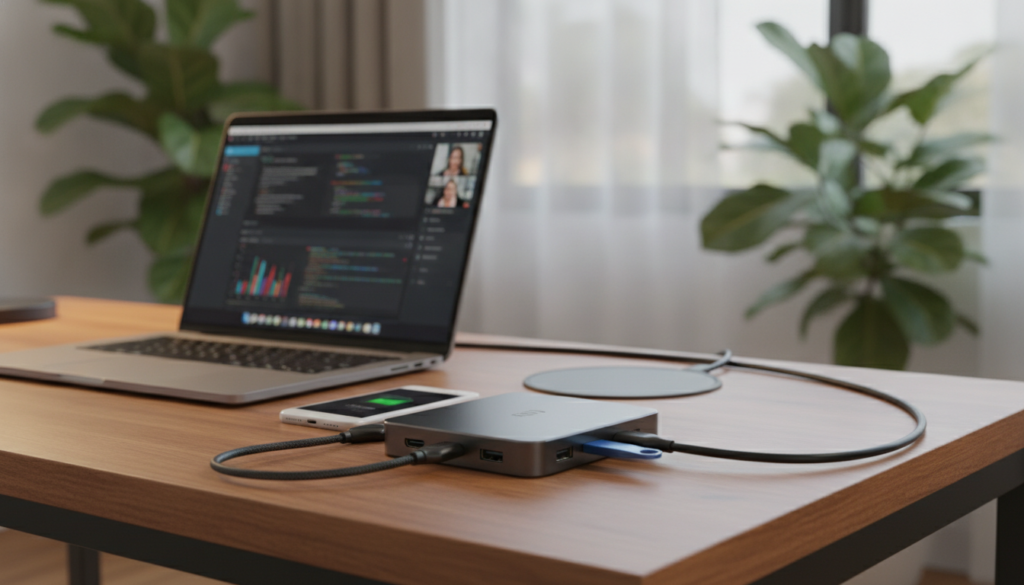
Getting your dock ready is easy. It doesn’t matter if you have a multi-port usb-c adapter or a full docking station. It only takes 10 to 15 minutes for driver downloads and cable connections.
Unboxing and Initial Setup
First, plug in the power adapter to your dock and a wall outlet. A usb-c hub with power delivery can charge your laptop while running all your peripherals. Make sure your laptop’s operating system, BIOS, and drivers are up to date before plugging in.
For Plugable stations, you’ll need to download DisplayLink drivers from their website. Mac users should install the DisplayLink Manager app to enable extended displays beyond simple mirroring. You can find detailed setup guidance for popular docking to walk you through each step.
Connecting Multiple Monitors
Plug your external monitors into the dock using HDMI, DisplayPort, or USB-C cables. On Windows, open Display Settings and select “Extend these displays” for a dual-monitor layout. Choose your primary display from the same menu.
If you use a CalDigit TS4 with HDMI monitors, you’ll need an active DisplayPort-to-HDMI adapter. A standard multi-port usb-c adapter with passive cables won’t deliver a signal in that scenario.
Troubleshooting Common Issues
Monitor not showing up? Try these quick fixes:
- Click the Detect button in Display Settings
- Restart your laptop with the dock connected
- Verify your USB-C port supports DP Alt Mode or Thunderbolt
- Check for firmware updates from the dock manufacturer
| Issue | Likely Cause | Fix |
|---|---|---|
| No display output | USB-C port lacks DP Alt Mode | Use a Thunderbolt or DP Alt Mode port |
| Monitor mirrors instead of extending | DisplayLink driver missing (Mac) | Install DisplayLink Manager app |
| Laptop not charging through dock | Insufficient power delivery wattage | Use the laptop’s own charger alongside the dock |
| Intermittent connection drops | Outdated dock firmware | Download the latest firmware update |
Tips for Maximizing Performance
To get the most from your usb-c charging dock, follow some smart habits. The right settings, updated software, and simple care routines can make a big difference. This helps a lot in your daily work.
Optimal Monitor Configurations
Your thunderbolt 3 docking station can handle dual 4K monitors at 60Hz. A single 8K display is possible at 30Hz on compatible stations. Choosing the right resolution and refresh rate keeps everything smooth.
Not all cables are the same. Matching your cables to your device is key for stable video and safe power. Short cables under three feet work best.
| Monitor Setup | Max Resolution | Refresh Rate | Connection Needed |
|---|---|---|---|
| Single Monitor | 8K | 30Hz | Thunderbolt 4 |
| Dual Monitors | 4K per display | 60Hz | Thunderbolt 3/4 |
| Triple Monitors | 1080p per display | 60Hz | DisplayLink USB-C |
Updating Drivers and Firmware
DisplayLink drivers need regular updates for stability. Outdated firmware can cause flickering or dropped connections. Check your manufacturer’s website at least once a month.
Kensington DockWorks software has network optimization features. Intel VT-d DMA protection on your thunderbolt 3 docking station keeps your data safe.
Maintenance and Care Tips
Clean your ports with compressed air every few weeks. Dust buildup weakens connections. Rear-facing ports help with cable management and keep your workspace tidy.
- Use docks with aluminum construction for passive cooling during long work sessions
- Choose nylon-braided cables for greater durability
- Look for screw-lock connections to prevent accidental disconnects
- Buy E-Marker certified cables from reputable brands like Anker
Cost Considerations
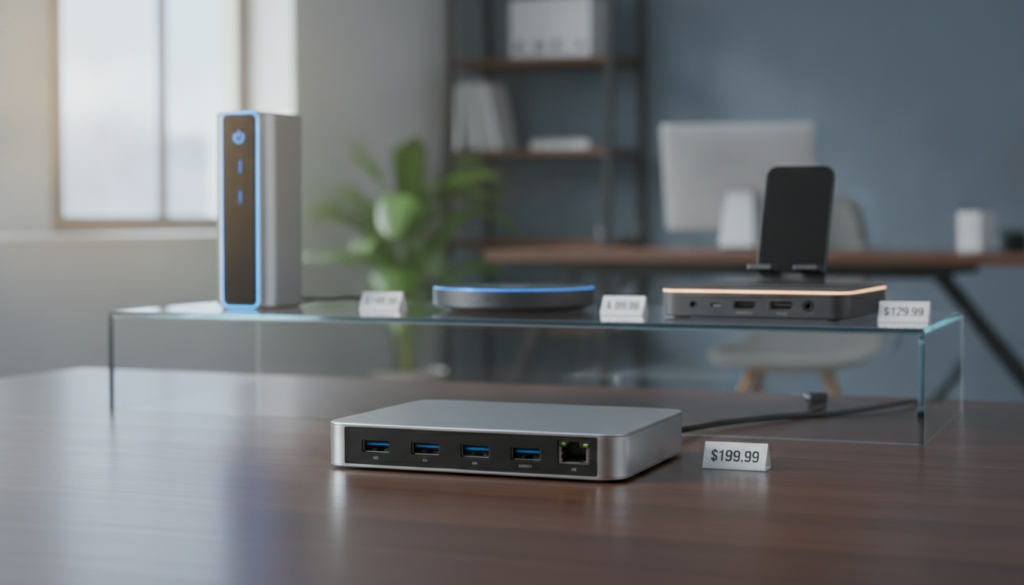
Your budget is key when picking a laptop docking station usb-c. Prices vary from $30 to over $450. Knowing what you get at each price helps you spend wisely.
Price Range Overview
For under $65, you can find basic docks. The iKling USB-C 9-in-1 is around $30. The Selore USB C 8-in-1 offers a good dual monitor setup for about $40.
Docks in the $80 to $230 range offer more. The Hiearcool 11-in-1 and Plugable Triple 4K Monitor dock have more ports and support for multiple displays.
Premium docks like the CalDigit TS4 cost nearly $450. These Thunderbolt 4 docks give maximum speed and future-proof connectivity.
| Price Tier | Example Model | Approximate Price | Monitor Support |
|---|---|---|---|
| Budget | Selore USB C 8-in-1 | $40 | Dual 1080p |
| Mid-Range | Plugable Triple 4K Monitor | $150 | Triple 4K |
| Premium | CalDigit TS4 | $450 | Dual 6K |
Value for Money: Features to Look For
Many budget models don’t come with a power adapter. This adds $20 to $40 to the cost. Think about this before buying a cheap docking station.
When comparing value, look at these features:
- Total number of ports and port types
- Power delivery wattage (60W vs. 100W makes a big difference)
- Number of monitors supported and resolution limits
- Thunderbolt 4 support for long-term compatibility
The LionWei 13-in-1 at about $64 is a good deal. It offers many ports without breaking the bank. This price is great for most professionals.
Customer Reviews and Feedback
Real-world feedback from buyers tells you more than any spec sheet. When it comes to choosing a usb type-c dock, reviews reveal what works — and what frustrates — in daily use. Here’s what customers are saying across popular models.
Positive Experiences
The Plugable Triple 4K Monitor dock earns praise for its vertical design. Users love that it saves desk space while keeping every port within reach. CalDigit TS4 fans highlight its 18-port layout and Thunderbolt 4 speeds for running multiple peripherals at once.
Budget-friendly picks like the Hiearcool universal usb-c dock score points for clearly labeled ports. Buyers report a quick, painless setup with zero guesswork. The Anker 675 USB-C Docking Station stands out for doubling as a monitor stand and wireless charger — a smart pick for small desks.
Common Complaints
Not every experience is smooth. Buyers flag these recurring issues:
- DisplayLink driver requirements add unwanted setup complexity on certain models
- CalDigit TS4 lacks HDMI ports, forcing users to buy active adapters separately
- Budget docks often skip audio jacks, limiting multimedia use
- Affordable options rarely include power adapters in the box
Overall Satisfaction Ratings
Satisfaction runs highest when a universal usb-c dock matches your specific needs rather than trying to do everything. The data below reflects average user ratings across major retailers.
| Docking Station | Avg. Rating (out of 5) | Top Strength | Top Weakness |
|---|---|---|---|
| CalDigit TS4 | 4.6 | 18-port versatility | No HDMI output |
| Plugable Triple 4K | 4.4 | Space-saving design | Driver setup required |
| Anker 675 | 4.3 | Monitor stand + charger | Single-monitor only |
| Hiearcool 7-in-1 | 4.2 | Easy plug-and-play | No power adapter included |
Your best usb type-c dock is the one built for your workflow. Match features to your daily tasks, and satisfaction follows.
Future Trends in Docking Stations
The USB-C docking station market is changing fast. New tech is making these devices better for your desk. Here’s what’s coming next.
USB-C Technology Evolution
Intel’s Thunderbolt 5 is a big deal. It offers 80Gbps of bandwidth, with up to 120Gbps for video. This is double what Thunderbolt 3 offered.
This means future docks can handle triple 4K displays at 144Hz on Windows machines. No problem.
Power delivery is going up to 240W. This covers even the most power-hungry laptops. DisplayLink is working on native OS integration, so you won’t need extra drivers.
Detachable M.2 NVMe SSD enclosures are becoming common. They offer up to 2TB of storage at 10Gbps speeds. Intel’s Thunderbolt Share lets you connect two devices at once for easy file transfers and shared peripherals.
Predictions for 2025 and Beyond
By late 2025, wireless docking might be an option for your USB-C docking station. AI-powered port management will adjust bandwidth for your devices automatically.
Enterprise models from Dell and Lenovo might include biometric authentication. This adds extra security at every connection point.