What if your laptop sounds like a jet engine? It’s not because you’re working too hard.
You’re just checking email, but your laptop fan is super loud. It’s annoying and might be a sign of trouble. Knowing why your laptop fan is loud can help avoid expensive fixes later.
Dust builds up in your laptop’s vents over time. This blocks air flow. Your laptop gets hot, and the fans work harder to cool it down.
Even if your CPU is not busy, a loud fan might mean hidden problems. These issues aren’t always from heavy tasks like games or videos.
When air can’t move, your laptop slows down. This is because of blocked vents, broken fans, or bad surfaces. These problems make laptops hot and loud, like in this article.
This guide will show you how to fix these problems. You’ll learn to clean, check, and protect your laptop. This way, it will run cool and quiet again.
Key Takeaways
- A loud laptop fan during light tasks signals a laptop fan noise problem that needs attention.
- Dust buildup inside vents is one of the most common and fixable causes of excessive fan noise.
- Laptop cooling system issues can trigger automatic CPU slowdowns, cutting your productivity.
- Hidden background processes or malware may push fan speeds to 100% without your knowledge.
- Blocked air vents from soft surfaces like beds or pillows trap heat and force fans to work harder.
- Regular cleaning and proper ventilation prevent most overheating problems before they start.
Understanding Laptop Fan Functions
Your laptop makes a lot of heat. Every time you do something online or watch a video, it gets warmer. The fan helps keep it cool.
It’s good to know why your laptop has a fan. It helps keep things cool every day.
How Laptop Cooling Systems Work
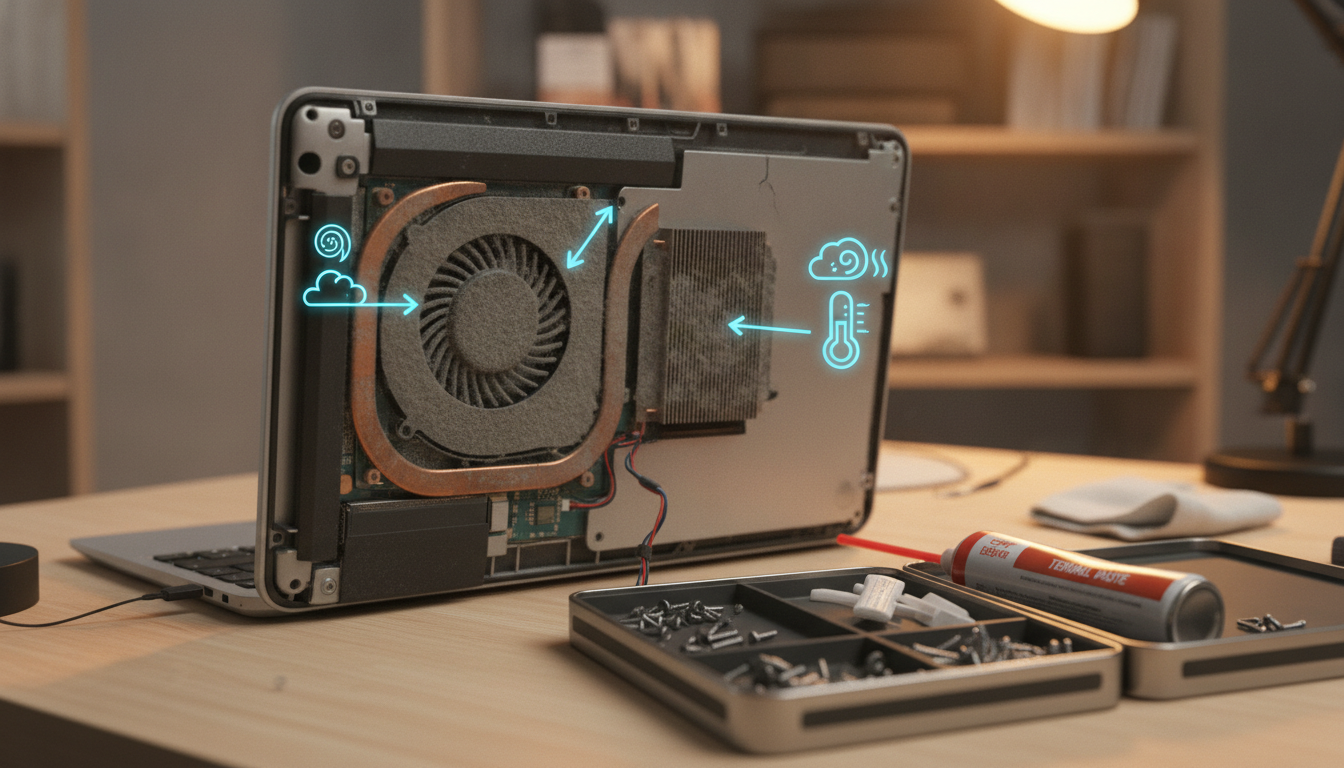
The processor and graphics chip make the most heat inside your laptop. A cooling system uses copper pipes, paste, and fans to move that heat. It pulls cool air in and pushes hot air out.
When it gets too hot, the fan spins faster. This is called thermal throttling. It’s a safety feature that slows things down to protect your laptop.
If it can’t cool down fast enough, your laptop will slow down. This helps prevent damage but makes things slower.
Importance of Fans in Laptop Performance
Fans do more than just cool things down. They also protect your RAM, storage drive, and motherboard from heat damage. Without fans, your laptop wouldn’t last long.
To make your laptop’s fan quieter, first understand what makes it loud. Here’s a quick look at how different parts make heat:
| Component | Heat Output Level | Fan Impact |
|---|---|---|
| CPU (Processor) | High | Primary driver of fan speed |
| GPU (Graphics Chip) | High | Triggers rapid fan bursts during gaming or rendering |
| RAM (System Memory) | Low to Moderate | Minimal direct impact on fan speed |
| Storage Drive (SSD/HDD) | Low | Rarely affects fan behavior |
| Battery | Moderate | Can increase overall chassis temperature |
A good fan keeps everything running smoothly. If your laptop overheats and the fan is loud, it’s time to check things out.
Common Causes of Loud Laptop Fans
Wondering why your laptop fan is so loud? A few main reasons are likely causing it. Your laptop fan turns up the volume to protect it from harm. Let’s look at the most common reasons.
Overheating Issues
Your laptop gets hot when you use it. If it gets too hot, the fan works harder. Aging thermal paste between the CPU and heat sink is often the problem. This paste gets old and can’t move heat well.
Blocked air vents make things worse. If your laptop is on a soft spot, air can’t get in. This makes the processor and memory get too hot, and the fan spins fast to cool it down.
Dust and Debris Buildup
Dust is the top reason for loud fan noise. It builds up around vents and fins over time. This traps heat inside your laptop.
Your fan has to work harder to move air through the dust. Worn fan bearings can also make a grinding sound. This means it’s time to clean or replace the fan.
High CPU or GPU Usage
Games make your laptop fan loud because they use a lot of power. This is normal.
Background programs can also make your fan loud. Check your task manager for apps that use a lot of resources.
| Cause | Noise Type | Fix Difficulty |
|---|---|---|
| Dust buildup | Steady loud whirring | Easy |
| Dried thermal paste | Constant high-speed spinning | Moderate |
| High CPU/GPU usage | Intermittent loud bursts | Easy |
| Worn fan bearings | Grinding or rattling | Advanced |
Knowing why your laptop fan is loud helps you fix it. You can watch your laptop’s temperature and take action.
Signs Your Laptop is Overheating
Your laptop gets hot when you use it. That’s normal. But if it gets too hot, you’ll see warning signs. Ignoring these signs can hurt your laptop.
Knowing how to fix loud laptop fan issues starts with recognizing these red flags early. Let’s break down the three most common signals.
Performance Slowdowns
When your laptop gets too hot, it slows down. This is a safety feature called thermal throttling. You might see apps load slower, videos stutter, and tasks take longer.
If your CPU usage is over 100% when idle, it could be malware. Managing apps and using power-saving features can help.
Unexpected Shutdowns
A sudden shutdown is your laptop’s last resort. It shuts down when it gets too hot to protect itself.
This isn’t a glitch. It’s a way to protect itself. If your laptop shuts down on its own often, it’s urgent.
Excessive Fan Noise
A loud laptop fan is a clear sign of overheating. Different sounds mean different problems:
- Whooshing airflow — dust buildup restricting ventilation
- Clicking or grinding — bearing damage needing immediate repair
- Constant wind-tunnel sound while idle — overheating requiring investigation
| Fan Sound | Likely Cause | Urgency Level |
|---|---|---|
| Whooshing | Dust and debris buildup | Moderate |
| Clicking or buzzing | Fan bearing damage | High |
| Grinding | Imminent fan failure | Critical |
| Loud while idle | Background processes or malware | High |
If you see these signs, it’s time to check your laptop’s temperature. This will help you find the exact problem.
Monitoring Your Laptop’s Temperature

Watching your laptop’s temperature is very smart. It helps you find cooling problems early. This way, you can tell if your fan needs cleaning.
An idle laptop should use less than 20% of its CPU. If it gets too hot when not using hard programs, it’s a problem.
Using Built-in Tools
Your laptop has tools to check its health. On Windows, press Ctrl+Shift+Esc to open Task Manager. It shows CPU usage and which programs use a lot of resources.
Mac users can press Ctrl+Space and search for Activity Monitor. It shows resource usage for quick checks. Your BIOS setup screen also has fan control settings.
Third-Party Software Options
Special apps give more details. Tools like OCCT, Core Temp, and HWiNFO show temperature, voltage, and fan speed in real-time. They help find cooling problems early.
- Core Temp — Free, lightweight Windows temperature monitor
- Fanny — Simple Mac fan and temperature tracker
- Dell SupportAssist — Full hardware checkup with automated fixes
- Intel XTU — Detailed clock speed and thermal tracking for Intel CPUs
- AMD Ryzen Master — Fine-tuned monitoring for AMD processors
| Tool | Platform | Key Feature | Cost |
|---|---|---|---|
| Core Temp | Windows | Real-time CPU temperature | Free |
| Fanny | Mac | Fan speed and temperature | Free |
| OCCT | Windows | Stress testing with thermal logs | Free (personal use) |
| Dell SupportAssist | Windows | Automated hardware diagnostics | Free |
| Intel XTU | Windows | Clock speed and voltage tracking | Free |
Keep a log of your changes. This helps you see how temperature and fan speed change. It tells you when to clean your fan or get better cooling.
Dust and Cleaning Your Laptop
Wondering why your laptop fan is loud? Dust buildup is a common reason. Most laptops get dusty in about a year. This dust blocks airflow, making the fan spin faster and louder.
Cleaning your laptop can make it quieter. You just need the right tools and a simple process to do it safely.
Recommended Cleaning Tools
Not all cleaning tools are safe for your laptop. Avoid vacuum cleaners because they can damage your laptop with static electricity. Here are some safe options:
| Tool | Best Use | Estimated Cost |
|---|---|---|
| Compressed Air Can | Blowing dust from vents and keyboard gaps | $8–$12 |
| Electric Duster | Heavy dust buildup deep inside the laptop | $30–$60 |
| Soft-Bristle Brush | Gently cleaning fan blades and heat sinks | $5–$10 |
| Isopropyl Alcohol (90%+) | Removing old thermal paste during maintenance | $4–$8 |
| Precision Screwdriver Set | Removing the back panel for internal access | $10–$20 |
Step-by-Step Cleaning Guide
Here’s how to safely clean your laptop and quiet the fan:
- Shut down your laptop and unplug it.
- Remove the battery if you can.
- Use compressed air to clean the air vents.
- Open the back panel with a precision screwdriver for deeper cleaning.
- Brush dust off the fan blades and heat sink with a soft brush.
- Use an electric duster for tough dust.
- Put everything back together and turn it on to check the fan noise.
Wondering why your laptop fan is loud even after software fixes? Cleaning it physically often helps the most. After cleaning, you can try software solutions for quieter performance.
Software Solutions to Manage Fan Noise

You don’t always need to open your laptop to solve a laptop fan noise problem. Software fixes can quiet things down fast. A few quick changes on your screen can reduce heat and bring fan speeds back to normal.
Updating Drivers
Outdated drivers make your system work too hard. This extra effort raises temperatures and makes fans work too much. Visit your laptop manufacturer’s website to get the latest BIOS and driver updates.
These updates fix bugs that make fans work too much. Windows Update can help, but the manufacturer’s site has the newest versions. This is a simple step to fix loud laptop fan issues.
Closing Resource-Heavy Applications
Background apps use CPU power without you knowing. Open Task Manager (Ctrl + Shift + Esc) to see which apps use the most resources. Close anything you don’t need right now.
Go to the Startup tab in Task Manager to turn off apps that start automatically. Fewer apps mean less work for your processor and quieter fans. But, never turn off your antivirus software, as malware can secretly use resources and make fans work harder.
Knowing how laptops cool themselves shows why reducing CPU load is important. Tools like SpeedFan let you control fan speeds directly if your motherboard supports it.
| Software Tool | Purpose | Best For |
|---|---|---|
| Task Manager | Monitor and close heavy apps | Quick CPU load reduction |
| SpeedFan | Manual fan speed control | Custom fan curve settings |
| MSI Afterburner | GPU fan and performance tuning | Gaming sessions |
| Windows Update | System and driver patches | General stability fixes |
These software steps can solve a laptop fan noise problem before you need to think about hardware repairs.
Hardware Solutions for Loud Fans
When software tweaks and cleaning aren’t enough, it’s time to look at hardware upgrades. If you’re asking why is my computer fan so loud suddenly, worn-out thermal paste or a failing fan could be the root cause. Physical fixes often deliver the most lasting results.
Replacing the Cooling System
Thermal paste breaks down after about three years. Once it degrades, your CPU can’t transfer heat to the heatsink properly. This leads to laptop overheating and loud fan behavior even during light tasks. Replacing old paste with a high-quality compound like Thermalright TF7 or PTM7950 can drop idle temps by 5°C or more.
As reported across community repair threads, users who cleaned their cooler and re-pasted saw idle temperatures fall to around 40°C. Misaligned thermal pads on power-management chips can cause excessive noise during charging. Adjusting or replacing those pads restores proper heat contact.
If your fan itself is failing, you can find model-specific replacements on Amazon. Look for options designed for your exact laptop. When comparing fans, pay attention to these specs:
| Specification | What It Measures | What to Look For |
|---|---|---|
| CFM (Cubic Feet per Minute) | Airflow capacity | Higher is better for cooling |
| dBA (Decibels) | Noise level | Lower means quieter operation |
| Fan Size | Blade diameter | Larger fans run quieter at equal airflow |
Upgrading Components
Aftermarket CPU coolers — in both air and liquid varieties — outperform stock heatsinks. Noctua low-noise adapters reduce voltage to the fan, cutting noise without a full swap. Fan control knobs give you manual speed adjustment when software options fall short.
- Apply a drop of sewing machine oil to fan bearings before grinding starts
- Choose coolers with larger fans for quieter, more efficient airflow
- Pair hardware upgrades with the airflow improvements covered in the next section
Enhancing Airflow Around Your Laptop

Cleaning your laptop fan might not solve the noise problem. The issue could be where you put your laptop. Good airflow is key, just like a clean fan. Without it, heat gets stuck, and your fan works too hard.
Choosing the Right Surface
A flat, hard surface is best for your laptop. Desks, countertops, and wooden tables let air flow well. This keeps your laptop cool and quiet.
But, soft surfaces like beds and couches are bad. They block your laptop’s vents and trap heat. A lap desk is a good choice for working on the couch.
- Place your laptop on a hard, flat desk or table
- Keep at least two inches of clearance on all sides
- Avoid blankets, pillows, and mattresses during long sessions
- Use a lap desk for portable comfort without blocking vents
Using Cooling Pads
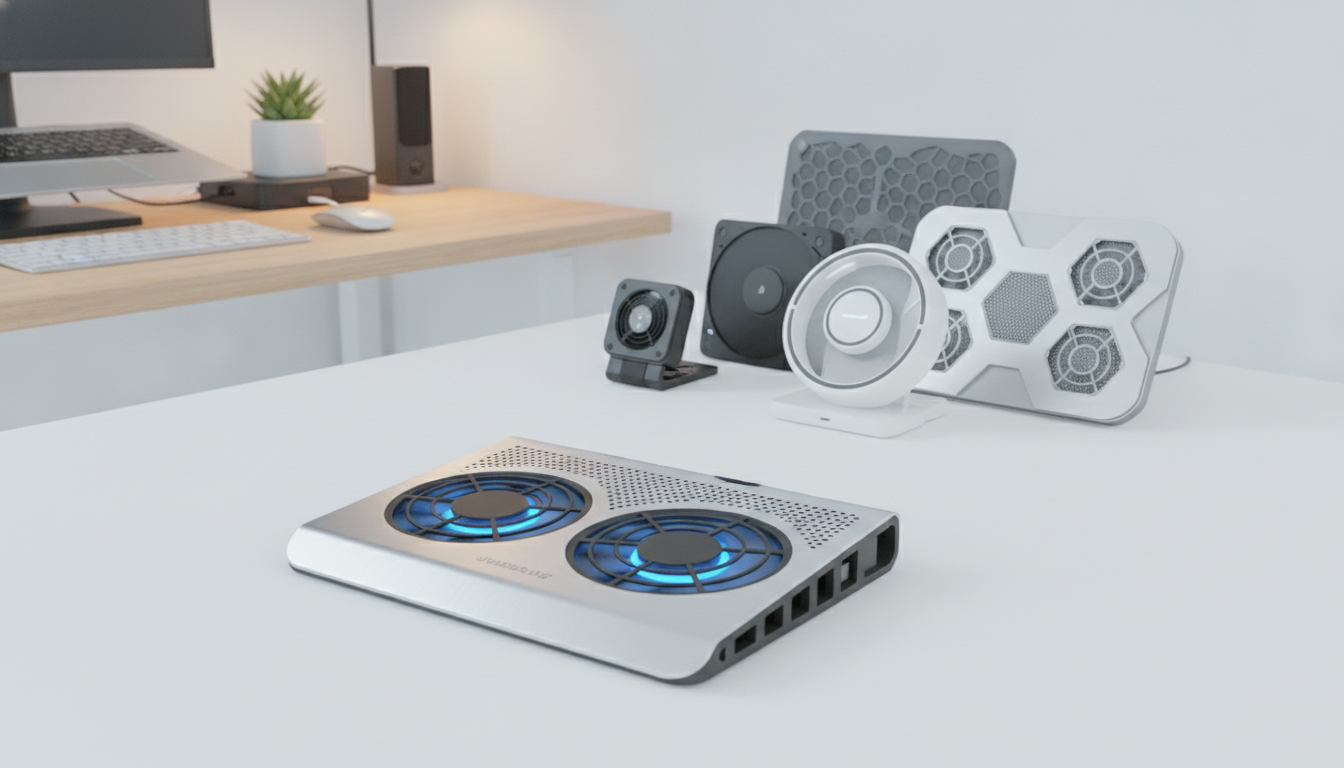
Cooling pads boost airflow. They sit under your laptop and push cool air up. They’re great for heavy work or gaming.
| Feature | Flat Desk | Cooling Pad |
|---|---|---|
| Passive Airflow | Yes | Yes |
| Active Fan Boost | No | Yes |
| Average Temp Reduction | 5–10°F | 10–20°F |
| Portability | Fixed location | Lightweight, travel-ready |
Using a cooling pad with cleaning your fan is the best plan. Good airflow and a clean system keep your laptop cool and quiet. This simple mix stops your laptop fan from being too loud.
When to Seek Professional Help
At times, home fixes aren’t enough. If your laptop fan is still loud after cleaning and new thermal paste, get help. Ignoring serious cooling issues can harm your laptop forever.
Signs That Indicate Serious Issues
Listen to your laptop. Metal grinding or scraping sounds mean the fan’s bearings are damaged. This is more than a can of compressed air can solve.
Look out for these signs that mean you need a pro:
- Fan is still loud after cleaning and new thermal grease
- Laptop shuts down quickly after starting
- Error codes show up on diagnostic tests (Dell users press F12 at startup)
- Burning smell from the vents
- Fan spins fast but laptop still overheats
If your laptop overheats fast, turn it off right away. Running it can damage the motherboard or CPU.
Finding a Certified Technician
Choose someone who knows your brand. Dell, HP, and Lenovo have authorized service centers in the U.S. They have the right parts and training for your laptop.
| Repair Option | Best For | Typical Turnaround |
|---|---|---|
| Manufacturer Support (Dell, HP) | Warranty-covered or complex repairs | 5–10 business days |
| Local Certified Repair Shop | Out-of-warranty fan or thermal fixes | 1–3 business days |
| On-Site Technician Service | Business laptops needing minimal downtime | Same day or next day |
While DIY fan replacement guides are helpful, a certified tech ensures it’s done right. One mistake can cause more problems. For busy people, the peace of mind is worth it.
Preventative Measures for Future Noise
Ever wondered why your laptop fan is so loud? It’s often because you haven’t cleaned it or placed it right. Simple habits can keep your laptop cool and quiet for a long time. This saves you time, money, and stress later on.
Regular Maintenance Tips
Clean your fan vents and heat sink once a year. Use compressed air in short bursts to remove dust. Replace thermal paste on your processor every two to three years. Keep cables tidy to avoid blocking airflow.
These steps help a lot to reduce laptop fan noise before it’s a big problem.
Best Practices for Laptop Use
Put your laptop on a hard, flat surface. Never on a blanket or pillow that blocks vents. A cooling pad can help lower temperatures and ease fan work.
Keep your laptop in a cool, well-ventilated area. Away from direct sunlight or heat. Elevate desktops off the floor to avoid dust and pet hair.
Check for driver updates on the manufacturer’s website often. Old fan control software can make your fan loud. Watch your CPU usage to catch heavy programs early. Premium laptops from brands like VAIO have efficient cooling, making them quiet and long-lasting.