
What if your laptop battery is dying faster than it should — and you don’t even know it?
Most people think their battery is okay until it barely lasts. The average laptop battery lasts two to five years. This depends on how you use it, charge it, and the brand.
If you’ve ever wondered how long your laptop battery should last, it varies. A battery can handle 300 to 1,000 charge cycles before losing power. After 500 cycles, it keeps about 80% of its original power.
Your daily use also matters. You might get four hours or twelve hours on one charge. Dell users often see a drop in battery life after 18 months of heavy use.
Battery performance depends on its specs like cell count and watt-hours. A higher watt-hour rating means longer time without needing to charge. Knowing your battery’s lifespan helps you plan better and avoid surprises.
This guide covers everything you need to know. It talks about battery types, charging habits, and when it’s time for a new one.
Key Takeaways
- Most laptop batteries last two to five years, or roughly 300 to 1,000 charge cycles.
- After 500 charge cycles, expect your battery to retain about 80% of its original capacity.
- Daily runtime ranges from 4 to 12 hours based on your model, usage, and power settings.
- Higher watt-hour ratings mean longer periods between charges.
- Heavy users may see battery performance drop in as little as 18 months.
- Smart charging habits and proper care can stretch your laptop battery lifespan well beyond the average.
Understanding Laptop Battery Life
To make your battery last longer, you need to know what affects it. Learning about laptop battery life helps you use your device better.
What Is Battery Life?
Battery life shows how much charge your laptop has left. It tells you how well your battery works now compared to when it was new.
There are two important numbers for battery health. Design capacity is what a new battery can hold. Full charge capacity is what your battery can hold now. Both are in milliampere-hours (mAh) or watt-hours (Wh).
When you ask how long a laptop battery lasts, look at these numbers. A small difference means your battery is healthy. A big difference means it’s getting old and not working as well.
| Metric | What It Measures | Example Value |
|---|---|---|
| Design Capacity | Maximum charge when new | 56 Wh |
| Full Charge Capacity | Current maximum charge | 45 Wh |
| Battery Health | Percentage of original capacity remaining | 80% |
Why It Matters to You
A good battery keeps you working and moving. A bad one can shut down without warning and might lose your work.
More cells in your laptop mean longer battery life. But, it also means your laptop will be heavier and harder to carry. Knowing about battery life helps you choose what’s best for you.
Knowing how long a laptop battery lasts helps you plan. You can save money for new batteries and avoid surprises that mess up your day.
Typical Laptop Battery Lifespan
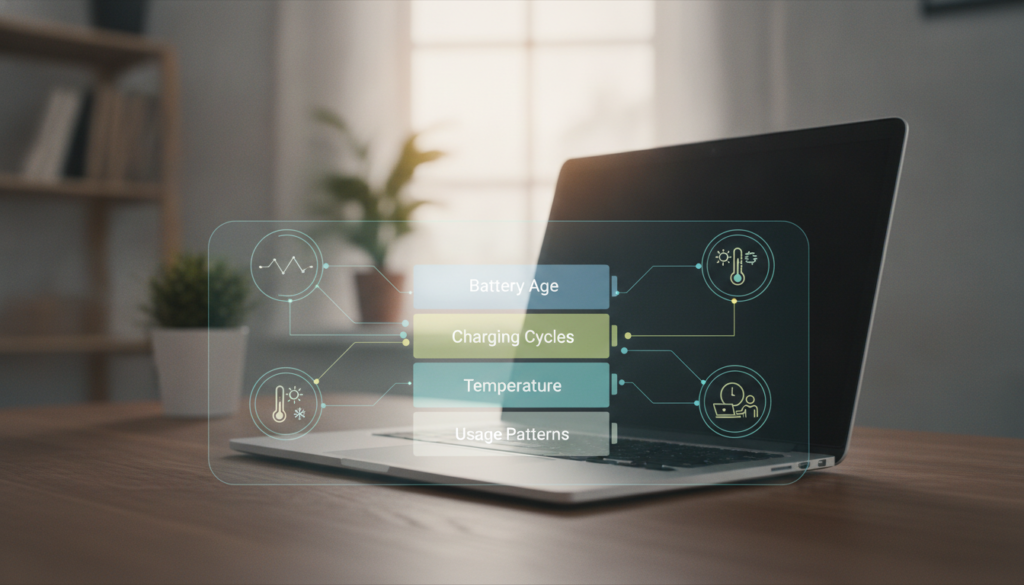
Your laptop battery won’t last forever. Knowing how long it lasts helps you plan. Most batteries last between 300 and 1,000 charge cycles before losing a lot of power.
A complete charge cycle is when you use 100% of your battery’s power. But not all at once. Using 50% today and 50% tomorrow counts as one cycle.
Factors Influencing Battery Lifespan
Many things affect how long your battery lasts:
- Temperature: The best temperature is 68–77°F. Too hot speeds up wear and tear.
- Usage intensity: Running apps like video editing or gaming uses more battery than simple tasks.
- Battery quality: Better laptops have longer-lasting batteries. Cheaper ones don’t last as long.
- Age: Batteries naturally lose power over time, even if you use them lightly.
Average Lifespan for Different Brands
Laptop battery life varies by brand and how you use it. Here’s what you can expect:
| Brand | Average Battery Lifespan | Typical Charge Cycles |
|---|---|---|
| Apple MacBook | 3–5 years | Up to 1,000 |
| Dell | 18–24 months | 300–500 |
| HP | 2–4 years | 300–500 |
| Lenovo ThinkPad | 2–4 years | 500–1,000 |
| ASUS | 2–3 years | 300–500 |
These numbers give you a good idea. But your actual experience depends on how you charge and use your laptop. We’ll explore this more in the next sections.
Types of Laptop Batteries
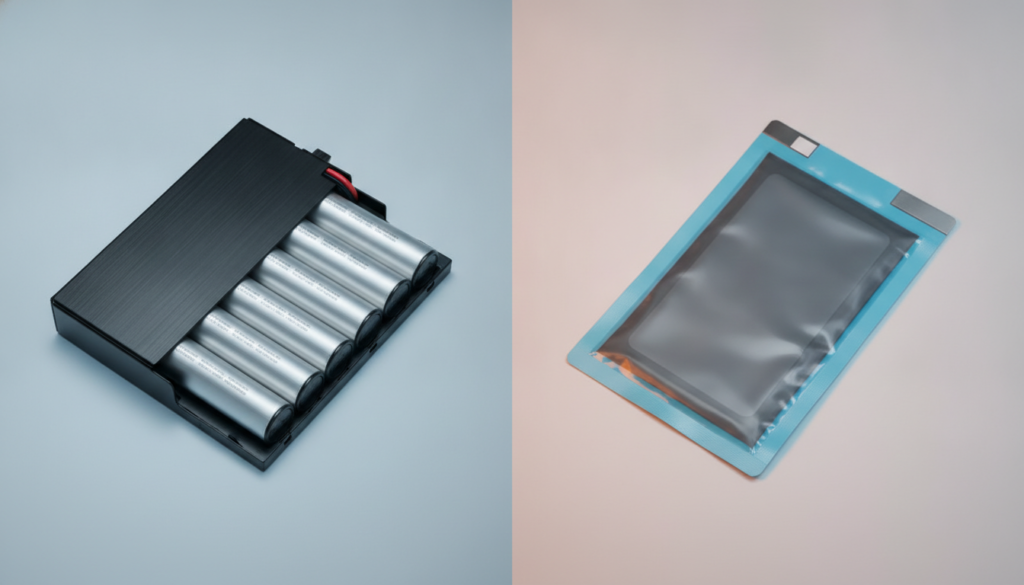
Not all laptop batteries are the same. You’ll find lithium-ion (Li-ion) and lithium-polymer (Li-Po) batteries in modern laptops. Each type ages differently. Knowing the differences helps you see when a battery is getting old.
Lithium-Ion vs. Lithium-Polymer
Lithium-ion batteries have liquid inside. They’re common, affordable, and reliable. Lithium-polymer batteries have gel or solid inside. They’re lighter and fit in slim laptops.
Both types lose power over time. Keeping your battery between 20% and 80% helps. Deep discharges can make them last 30–50% less.
When looking for a laptop with long battery life, the battery type matters a lot.
Pros and Cons of Each Type
Choosing between these two depends on what you want. Here’s a quick summary:
| Feature | Lithium-Ion (Li-ion) | Lithium-Polymer (Li-Po) |
|---|---|---|
| Weight | Heavier | Lighter |
| Form Factor | Rigid, cylindrical cells | Flexible, slim pouch |
| Cost | Lower | Higher |
| Energy Density | High | Slightly lower |
| Typical Cycle Life | 300–500 full cycles | 300–500 full cycles |
| Safety Risk | Moderate (liquid electrolyte) | Lower (gel electrolyte) |
| Common Use | Budget and mid-range laptops | Ultrabooks and premium laptops |
Knowing when to replace your battery depends on its type. Keeping it charged around 50% can triple its life.
Good charging habits and power settings are key. They make a big difference in how long your battery lasts.
Measuring Battery Performance
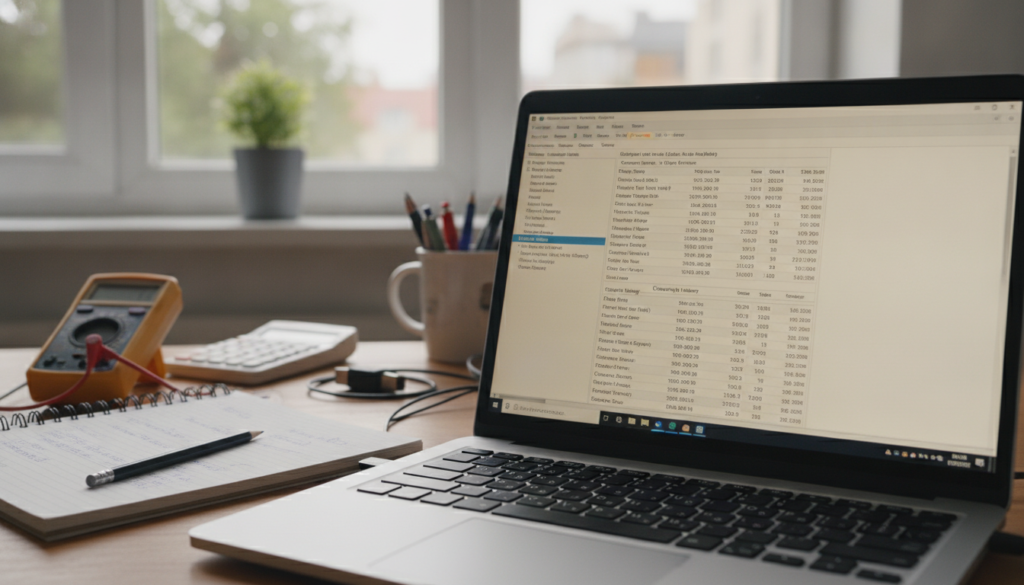
Knowing your laptop battery lifespan starts with measuring it. You don’t need to guess how your battery is doing. Built-in tools and reports give you clear, real numbers to work with.
Tools for Measuring Battery Life
Windows offers a free, built-in battery report. Open Command Prompt and type powercfg /batteryreport. This creates an HTML file at C:\Users\your-account\battery-report.html. It shows your design capacity, full charge capacity, and usage history.
Dell laptops come with extra options. Dell Optimizer shows battery health in its About my battery section. Dell Power Manager displays a health status indicator under Battery Information. You can access BIOS by pressing F2 at startup to view Battery Health under the Overview tab.
Dell’s On-Board Diagnostics offer a deeper look. Press F12 during boot, select Diagnostics, and run the Advanced Test. The System Info Health tab reveals detailed battery data, including maximum laptop battery cycles your battery can handle.
Interpreting Battery Usage Reports
Pay attention to these key sections in your battery report:
- Design capacity — the original power your battery was built to hold
- Full charge capacity — the power it holds right now
- Cycle count — how many full charge-and-drain cycles have occurred
- Recent usage — patterns that reveal drain speed
A big gap between design capacity and full charge capacity signals wear. Most batteries reach their maximum laptop battery cycles between 300 and 1,000, depending on the brand and battery type discussed earlier.
| Metric | Healthy Battery | Worn Battery |
|---|---|---|
| Full Charge vs. Design Capacity | 80–100% | Below 60% |
| Cycle Count | Under 300 | Over 800 |
| Charge Time (0–80%) | About 1 hour | Over 2 hours |
Tracking your laptop battery lifespan with these tools helps you plan ahead. You’ll spot warning signs early — before your battery fails during an important meeting. That awareness ties directly into the usage habits covered next.
Impact of Usage Habits
Your daily habits greatly affect your laptop’s battery life. How you use your laptop can make a big difference. Let’s look at what uses up your battery and how to save it.
How Usage Patterns Affect Battery Life
Doing light tasks like browsing the web and editing documents uses little power. These activities help you get the most battery life. But, gaming is different. It uses a lot of power because it works your laptop hard.
Video editing and 3D rendering use a lot of power too. Streaming videos is in between, using more power than typing but less than gaming. The brightness of your screen also uses a lot of power, up to 40%.
Laptops that cost more often last longer, even when used a lot. This is a big difference between high-end and budget laptops.
| Usage Type | Estimated Battery Life (Ultrabook) | Estimated Battery Life (Gaming Laptop) |
|---|---|---|
| Web Browsing | 8–12 hours | 4–6 hours |
| Video Streaming | 6–9 hours | 3–5 hours |
| Video Editing | 3–5 hours | 2–3 hours |
| Gaming | 2–4 hours | 1–2 hours |
Tips for Extending Battery Life During Use
Small changes can make a big difference in your laptop’s battery life. Try these easy tips:
- Lower your screen brightness to 50% or less.
- Close apps you’re not using.
- Turn on your laptop’s power-saving mode to save power.
- Turn off Bluetooth and Wi-Fi when not needed.
- Use dark mode on apps that support it to save power.
These tips are easy to do and can help a lot every day.
Charging Practices for Longevity
Your charging habits are key to your laptop’s battery life. Smart charging can make your battery last longer. It keeps your battery healthy without interrupting your work.
Best Practices for Charging Your Laptop Battery
Always use the charger that came with your laptop. Brands like Dell and Lenovo make chargers just right for your battery. Other chargers can harm your battery over time.
Don’t keep your laptop plugged in all the time. Use the battery often to keep it healthy. When you need to store your laptop, charge it to 40–60%. Then, put it in a cool, dry place.
Many laptops have special battery modes. These modes stop charging at 80%. This can make your battery last longer.
- Enable your laptop’s built-in battery conservation or smart charging mode
- Avoid charging in hot environments — heat accelerates degradation
- In winter, let a cold laptop warm up gradually before plugging it in
- Create custom power profiles that balance performance with battery care
Common Myths About Charging
“You must drain your battery to zero before recharging.” This was true for old batteries. But new lithium-ion batteries do best between 20% and 80%.
“Fast charging ruins your battery.” Fast charging, like Dell ExpressCharge, is safe. It slows down when your battery is full.
“Leaving it plugged in all night is fine.” But it’s not good for your battery. Unplug when you can to keep your battery healthy.
Signs of a Deteriorating Battery
Your laptop battery won’t last forever. Knowing when it’s time to replace it is key. A battery that once lasted all day can start to fade over time.
Warning Indicators of Battery Issues
One clear sign is if your battery doesn’t last as long. If an eight-hour battery now only lasts six hours, it’s losing power. This problem will only get worse.
Look out for these warning signs:
- Your laptop takes much longer to charge than it used to.
- The battery never reaches 100%, even after hours plugged in.
- Unexpected shutdowns happen while the battery still shows remaining charge.
- Excessive heat builds during charging sessions.
- Physical swelling causes the case to bulge or the trackpad to rise — a serious safety risk that can lead to thermal runaway or even an.
- Unusual odors or visible cracks appear on the battery casing.
When to Replace Your Laptop Battery
Knowing when to replace your battery is important. It keeps your data safe and avoids safety risks. Use the guide below to check your battery’s health.
| Battery Status | What You’ll Notice | Recommended Action |
|---|---|---|
| Excellent | Maximum capacity, full runtime | No action needed |
| Good | Charges normally, slight long-term decrease | Monitor monthly |
| Fair | Nearing end of useful life, noticeable runtime drop | Start shopping for a replacement |
| Poor | Insufficient power, frequent shutdowns | Replace immediately |
| Critical | Swelling, cracking, or strange smells | Stop using and replace right away |
Any physical damage — bulging, cracking, or odd smells — means you should stop using the battery at once. Fixing battery problems early keeps your device safe. It also helps you find a new battery when needed.
Upgrading Your Laptop Battery
When you see signs of a failing battery, it’s time to get a new one. A new battery can make your laptop work better again. Most battery swaps take less than 30 minutes with the right parts.
Options for Replacement Batteries
It’s best to use batteries made by your laptop’s maker. Dell, for example, sells new batteries on its website in some U.S. areas. If they’re not online, you can find a local Dell partner or reseller.
Dell SupportAssist can check your battery health and show error codes:
| Error Code | Meaning | Recommended Action |
|---|---|---|
| 2000-0131 | Battery not detected | Reseat battery; check for debris or damage |
| 2000-0132 | Battery nearing end of life | Plan for replacement soon |
| 2000-0133 | Insufficient power supply | Charge with original adapter; reseat or replace |
You can enter your error code, validation code, and service tag to find repair options based on your warranty.
Benefits of Upgrading
A new battery gives you a fresh start. You’ll get longer battery life, faster charging, and better performance on the go.
Calibrate your new battery right away. Charge it fully, then drain it completely. Recharge it once more. This helps your laptop read the battery gauge right from the start.
- Restored maximum laptop battery cycles for years of dependable use
- Shorter laptop battery replacement time with genuine parts
- Improved safety compared to worn-out cells
- Better resale value for your device
Getting a quality replacement now saves you from shutdowns and costly downtime later. As battery tech gets better, you’ll be ready for new innovations.
Future Trends in Laptop Battery Technology
Laptop battery life is getting better fast. New battery types are coming, like solid-state and silicon-anode cells. Recent data shows these new batteries are being tested in about 11% of pilot lines worldwide.
These new batteries pack more energy. They now have 265 Wh/kg, up from 210 Wh/kg in 2018. This means laptops can be thinner and still last long.
Innovations in Battery Technology
Smart power management is changing how we use laptop batteries. Companies like Apple, Dell, and Lenovo limit charging to 80% when plugged in a lot. This can make your battery last much longer, over 3.2 years.
What to Expect in the Coming Years
Batteries will soon last even longer. They can handle more charge cycles with less damage. This means your laptop battery could last four or five years.
Fast charging is also making your workday faster. Now, about 62% of laptops can charge faster than 65 W. This means you can get 80% charge in under 60 minutes. As battery life gets better, you’ll need to replace your battery less often.