
Is your laptop slowly cooking itself to death — and could you be the one causing it?
Your laptop is very important. You use it for work, school, and staying in touch. But if it gets too hot, you have a big problem. Laptop overheating signs often sneak up on you before serious damage happens.
Brands like HP, Dell, Lenovo, ASUS, Acer, Toshiba, and Apple make good laptops. But, any laptop can get too hot over time. Dust, too many apps, and old cooling systems can make it too hot.
Signs of overheating include loud fans, slow downs, and sudden shutdowns. These signs mean you need to act fast. If you ignore them, you risk losing your files and wasting your money.
The good news is, fixing it is easy. A few minutes of care can save your laptop. This guide will show you how to spot signs, find causes, and prevent overheating. You’ll learn how to keep your laptop cool and fast.
Key Takeaways
- Loud fan noise, hot surfaces, and slow performance are the most common laptop overheating signs to watch for.
- Dust buildup in vents is one of the leading causes of laptop temperature problems across all major brands.
- Running too many resource-heavy apps at once speeds up overheating and shortens component life.
- Simple steps like regular cleaning, using a cooling pad, and adjusting power settings can prevent most heat-related issues.
- Recognizing computer overheating symptoms early helps you avoid costly repairs and permanent hardware damage.
- Monitoring your laptop’s temperature with free tools gives you control before problems escalate.
Recognizing the Signs of Laptop Overheating
Your laptop tells you when it’s too hot. Spotting these signs early can prevent big problems. Look out for these three signs before they get worse.
Increased Fan Noise
When fans get louder, they’re working hard to cool things down. If they’re always spinning fast, even when you’re just checking email, it’s a sign. That loud noise is your computer’s cry for help.
Heat on the Laptop Surface
If your laptop feels hot, it’s a sign of trouble. If vents blow out warm air or the laptop feels scorching, it’s not cooling well. This is a clear sign without needing any special tools.
Slow Performance
When your laptop slows down, it’s a big problem. A hot processor automatically reduces its speed to avoid damage. You might see apps freeze or crash.
| Warning Sign | What You Experience | Severity Level |
|---|---|---|
| Loud fan noise | Constant whirring during light tasks | Moderate |
| Hot surface | Uncomfortable to touch or rest hands on | High |
| Slow performance | Lag, freezes, unexpected shutdowns | Critical |
Unexpected shutdowns help protect your laptop. Spotting these signs early can prevent damage. Knowing what causes these problems is important to learn next.
Common Causes of Laptop Overheating
Your laptop gets hot when you turn it on. That’s okay. But if it can’t cool down, problems start. Knowing what causes overheating helps prevent damage.
Dust Buildup in Vents
Dust is bad for your laptop’s cooling. Fans try to cool it down but get dust too. Over time, this dust blocks the vents.
Blocked vents trap heat inside. Fans work hard but can’t cool it down. This is a big laptop cooling problem.
Inadequate Cooling Systems
Not all laptops cool well. Some have small fans. Old laptops have dried-out thermal paste, making cooling harder.
Putting your laptop on soft surfaces blocks vents. High room temperatures make fans work too hard. This can cause your laptop to shut down or smell.
Running Resource-Intensive Applications
Running heavy programs heats up your laptop. Video editing, gaming, and data analysis all make it hot. Without good air flow, even new laptops can get too hot.
| Cause | Risk Level | Quick Fix |
|---|---|---|
| Dust-clogged vents | High | Compressed air cleaning every 3 months |
| Dried thermal paste | Medium | Professional reapplication |
| Soft surface use | High | Switch to a hard, flat desk |
| Resource-heavy apps | Medium | Use a cooling pad during intense tasks |
| High room temperature | Low to Medium | Keep room below 80°F and improve airflow |
Impact of Overheating on Laptop Performance
When your laptop gets too hot, it’s not just annoying. It can cause serious damage. Spotting overheating signs early can prevent costly fixes and keep you productive. Heat can harm your processor, graphics card, battery, and hard drive all at once.
Overclocking without watching the temperature can damage your CPU. Your laptop needs cool temperatures to work well.
System Instability
Thermal throttling is a big problem. It makes your processor slow down to avoid damage. This leads to slow apps, frozen screens, and delays.
Too much heat can cause your laptop to shut down suddenly. You might lose work, damage files, or harm your operating system. This can mess up your work and deadlines.
Signs of instability include:
- Random system crashes during normal tasks
- Applications freezing or becoming unresponsive
- Blue screen errors appearing without warning
- Automatic shutdowns under moderate workloads
Reduced Lifespan of Components
Heat wears down your laptop’s parts fast. Batteries lose charge sooner. Solder joints get weak. Hard drives get bad sectors faster.
| Component | Normal Lifespan | Lifespan Under Chronic Heat |
|---|---|---|
| Laptop Battery | 3–5 years | 1–2 years |
| Hard Drive (HDD) | 5–7 years | 2–4 years |
| Processor (CPU) | 8–10 years | 4–6 years |
| Graphics Card (GPU) | 5–8 years | 3–5 years |
Replacing parts is pricey. It can cost as much as a new laptop. Catching overheating signs early saves money and keeps your laptop running well.
Signs of Potential Hardware Failure
When your laptop gets too hot, it can get damaged. Spotting warning signs early helps avoid expensive repairs. Your laptop will show you signs that something is off.
Look out for these signs of overheating:
- Sudden shutdowns without warning
- Distorted lines across your display
- Sluggish load times and stuttering apps
- Pop-up temperature alerts from your system
Frequent Crashes and Freezes
A laptop crashing or freezing might need a restart. But if it happens a lot, it’s a sign of overheating. The CPU gets too hot and shuts down to protect itself.
This shutdown helps avoid damage. But it also stresses your hard drive and other parts. Frequent shutdowns mean your cooling system can’t keep up.
| Symptom | Likely Cause | Risk Level |
|---|---|---|
| Occasional freeze | Software glitch | Low |
| Crashes during heavy use | CPU overheating | Medium |
| Random shutdowns daily | Failing cooling system | High |
| Distorted display lines | GPU heat damage | Critical |
Unusual Error Messages
Many laptops, like Dell, HP, and Lenovo, have temperature checks. If it gets too hot, you’ll see warnings or error codes. These are important signs you should not ignore.
Ignoring these warnings can cause serious damage. If you see error messages, turn off your laptop and let it cool. If you keep seeing these messages, it’s time to check your cooling system or get help.
Preventive Measures for Overheating
When you see your laptop is too hot, it’s time to take action. Simple habits can protect your device and keep it running well. These steps are easy and effective.
Regular Cleaning and Maintenance
Dust is bad for your laptop’s cooling system. Turn off your laptop, unplug it, and use compressed air. Clean the vents, fans, and heatsink with short bursts to avoid damage.
Cleaning your vents every three to six months helps a lot. This is true for Dell and HP laptops, which have vents in specific places.
Using a Cooling Pad
A good cooling pad with fans helps keep your laptop cool. It’s a smart buy if you game or use heavy software. The FluidStance Lift Laptop Stand also helps by raising your laptop.
Always put your laptop on a hard, flat surface. Avoid soft surfaces like beds or cushions because they block vents and trap heat.
Adjusting Power Settings
Changing your power plan affects heat. Switching to Balanced from High Performance lowers heat. Use Task Manager to find and close processes that use a lot of CPU.
| Power Plan | CPU Output | Heat Level | Best For |
|---|---|---|---|
| High Performance | 100% | High | Short, intensive tasks |
| Balanced | Up to 70% | Moderate | Daily work and browsing |
| Power Saver | Up to 50% | Low | Light tasks and travel |
Tools like SpeedFan help control fan speeds and watch temperatures. Making these small changes can prevent big problems.
Monitoring Laptop Temperature
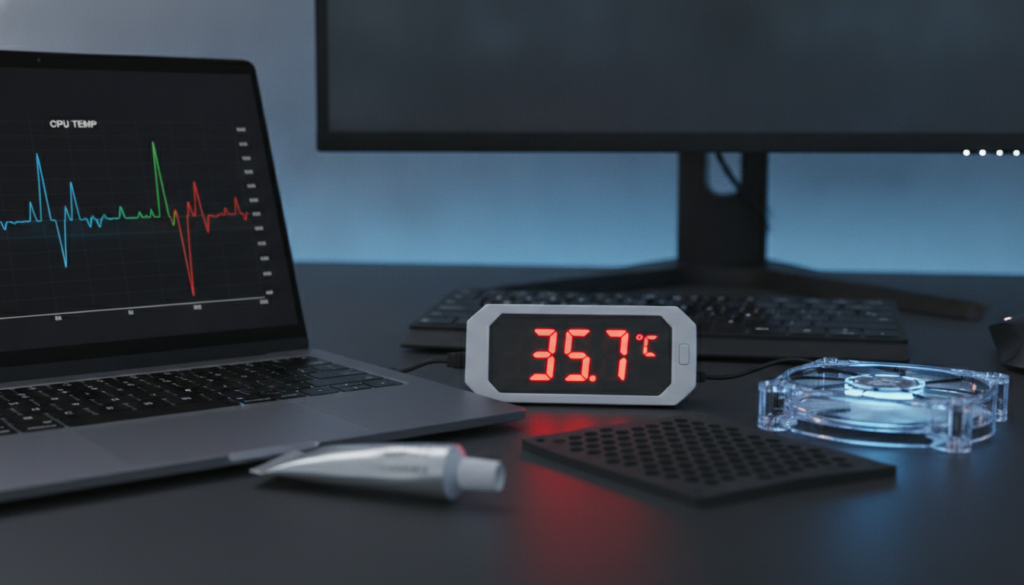
Watching your laptop’s heat is very smart. Finding heat problems early can save you money. A few free tools and knowing safe temperatures can help avoid big issues.
Tools for Temperature Monitoring
You don’t need to be a tech expert to check your laptop’s heat. Many free programs can help. Here are some good ones to try:
- Core Temp – Lightweight and focused on CPU temperature readings.
- HWMonitor – Tracks CPU, GPU, and hard drive temps in one dashboard.
- Open Hardware Monitor – Open-source tool with real-time sensor data.
- MSI Afterburner – Best for monitoring GPU heat during gaming or heavy tasks.
Tools like TeamViewer or Dameware let IT teams check laptop temperatures without touching it. This is great for teams working from different places.
Keep your operating system and GPU drivers updated. New drivers from NVIDIA or AMD can make your laptop cooler. Also, close unused tabs and apps to lower processor work.
Understanding Safe Operating Temperatures
Laptops usually run best between 50°F and 95°F (10–35°C). Going too high or low can damage it. Very cold can also cause problems, like LCD cracks or hard drive failures.
| Component | Safe Range | Warning Zone | Danger Zone |
|---|---|---|---|
| CPU | 104–158°F (40–70°C) | 158–194°F (70–90°C) | Above 194°F (90°C) |
| GPU | 86–167°F (30–75°C) | 167–203°F (75–95°C) | Above 203°F (95°C) |
| Hard Drive (HDD) | 77–113°F (25–45°C) | 113–131°F (45–55°C) | Above 131°F (55°C) |
| SSD | 32–158°F (0–70°C) | 158–176°F (70–80°C) | Above 176°F (80°C) |
If your laptop’s temperature is too high, it might start to slow down or crash. Acting quickly can save your laptop and keep you working smoothly.
When to Seek Professional Help
Some laptop overheating signs need more than a DIY fix. If your device keeps shutting down or swelling, it’s time for an expert. Ignoring these signs can cause permanent damage or worse.
Signs You Can’t Ignore
A swollen battery is very dangerous. Your laptop might still work for a bit, but there’s a big risk of thermal runaway and explosion. Turn off your laptop right away if you see any bulging.
Watch out for these urgent signs:
- Battery visibly swollen or warped
- Burning or chemical smell near the device
- Repeated shutdowns even after cleaning vents
- Screen flickering paired with extreme heat
- Error messages about battery health or temperature
If you see any of these, stop using your laptop and get help right away.
Choosing the Right Repair Service
Not every repair shop can fix every laptop. Find a service that knows your laptop’s brand. Shops like HP, Dell, Lenovo, ASUS, Acer, and Apple have trained techs and real parts.
| Factor | Authorized Service Center | Independent Repair Shop |
|---|---|---|
| Warranty Protection | Preserved | May void warranty |
| Genuine Parts | Yes | Not guaranteed |
| Technician Training | Manufacturer-certified | Varies by shop |
| Cost | Moderate to high | Low to moderate |
| Turnaround Time | 3–7 business days | 1–5 business days |
If you’re not sure about cleaning your laptop, a pro can do it safely. Opening your laptop yourself can damage it and void your warranty. Use the right tools to know when to call a pro.
The Role of Thermal Paste
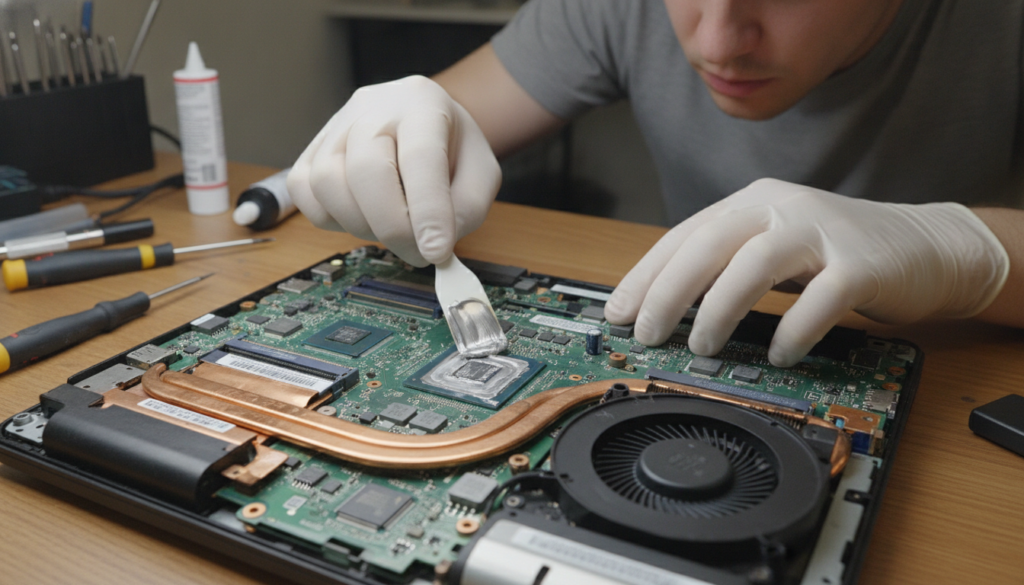
If your laptop is running hot and you’ve tried everything, the problem might be hidden. Thermal paste helps keep your processor cool. Over time, it dries out and can’t do its job well.
What is Thermal Paste?
Thermal paste is a special compound that goes between your CPU and cooler. It fills microscopic gaps to help heat move away. Without it, your processor can’t cool down fast enough.
There are three main types you should know about:
- Non-conductive pastes: Safe, easy to apply, and good for most users.
- Electrically conductive pastes: Great for heat transfer but can be risky.
- Liquid metal pastes: Best cooling but can corrode surfaces and need careful use.
Choosing the right paste can really help with laptop temperature problems. You can find the best thermal paste for gaming. Look for one that fits your budget and skill level.
| Thermal Paste | Price Range | Ease of Use | Performance |
|---|---|---|---|
| Thermal Grizzly Kryonaut | $$$ | Moderate | Outstanding |
| ProlimaTech PK-3 Nano Aluminum | $$ | Easy | Excellent |
| Arctic MX-5 | $ | Easy | Very Good |
| Noctua NT-H1 | $$ | Moderate | Very Good |
| Cooler Master MasterGel Pro v2 | $ | Easy | Good |
When to Reapply Thermal Paste
Thermal paste usually dries out after three to five years. When it does, you might see your laptop running hot. This can cause sudden throttling, high idle temperatures, and louder fan noise.
If your laptop is old and you’ve cleaned the vents, reapplying thermal paste can help. Clean the surfaces with isopropyl alcohol. Then, apply a small dot to the center of the chip. Let the cooler’s pressure spread it evenly. This simple step can fix stubborn temperature problems and make your laptop last longer.
Best Practices for Laptop Usage
How you set up your workspace affects your laptop’s heat. Making small changes can stop overheating. Spotting early signs helps you act quickly and protect your laptop.
Avoiding Direct Sunlight
Direct sunlight makes your laptop hot fast. Sitting by a window on a warm day can be too hot. Signs like sudden fan sounds or slow apps often come from sun.
Work in a shaded, well-ventilated spot. Keep your laptop away from heat sources. A cool laptop is a happy laptop.
Using Laptops on Hard Surfaces
Soft surfaces like beds block air vents. This traps heat and stops cool air from getting in. You’ll see your laptop gets hot fast on soft surfaces.
Use a hard, flat surface for better airflow. Desks and tables are best. A laptop stand also helps with air flow and keeps you comfy.
Here’s a quick comparison of common surfaces and their impact:
| Surface Type | Airflow Quality | Overheating Risk |
|---|---|---|
| Wooden Desk | Good | Low |
| Laptop Stand | Excellent | Very Low |
| Bed or Couch | Poor | High |
| Lap (no pad) | Limited | Moderate to High |
If your laptop still gets too hot, check the fan and thermal settings. Smart placement and software tweaks keep your laptop cool and working well.
Identifying User Patterns Contributing to Overheating
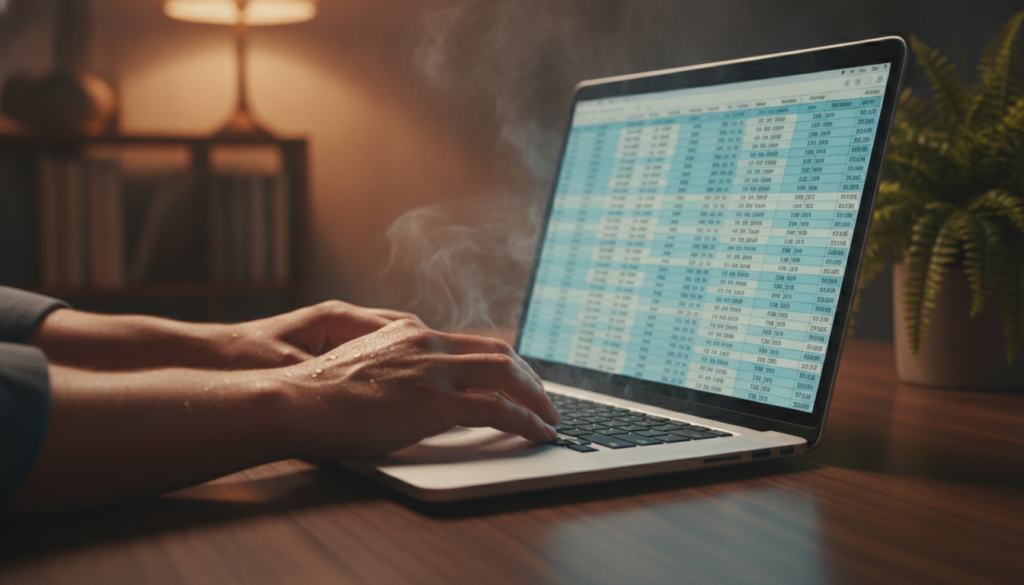
Your daily habits can really affect your laptop’s temperature. How you use it, for how long, and where you use it matters a lot. Knowing these habits can help protect your laptop from damage.
Extended Gaming Sessions
Modern games make your laptop very hot. Temperatures can go up to 90–98°C during long gaming. Many users see their laptops hit 95°C or more during long gaming sessions, as shown in detailed breakdowns of gaming laptop heat.
Playing for hours can cause serious damage. You might see your game slow down, the screen stutter, or even crash. Your laptop will slow down at 95°C and shut down at 100°C to protect itself.
A smart approach: Try to limit gaming to 2–3 hours. Take a break every 60 minutes to cool down. This can help your laptop last longer.
Multitasking Habits
Gaming isn’t the only problem. Activities like video rendering, code compiling, and data analysis also make your laptop hot. Running many programs at once makes it even hotter.
Here are quick ways to lower heat:
- Close unused browser tabs — each one uses CPU resources
- Turn off apps you’re not using
- Choose the right power mode for your task (Balanced for light work)
- Use a tool like HWiNFO64 to check temperatures
| User Pattern | Typical Temp Increase | Risk Level | Recommended Action |
|---|---|---|---|
| Gaming over 3 hours straight | +15–25°C above idle | High | Take hourly cooling breaks |
| Multiple resource-heavy apps open | +10–20°C above idle | Moderate to High | Close unused programs |
| Using laptop on soft surfaces | +10–15°C above idle | Moderate | Switch to a hard, flat surface |
| Skipping regular vent cleaning | +5–15°C over time | Moderate | Clean vents weekly |
Making small changes in how you use your laptop can really help. It can keep your laptop cool and make it last longer.
Future Innovations in Laptop Cooling Technology
The tech world is racing to fix laptop cooling issues. New materials and designs are changing how laptops handle heat. This means better performance and longer life for your devices in the future.
Advancements in Cooling Materials
Vacuum coolers are a big deal right now. They attach to your laptop and pull out hot air. This makes them great for cooling laptops during heavy tasks like gaming or video editing.
If your laptop can’t cool itself well, a vacuum cooler can help a lot.
Emerging Cooling Techniques
Adjustable laptop stands are also making a big impact. They help air flow better around your laptop, making it cooler. Brands like FluidStance offer stands that also let you set your screen at eye level.
This helps your neck and shoulders while keeping your laptop cool. Using stands with cooling tools means your laptop will work better and last longer. It will also feel more comfortable to use.