
Are you plugging in the wrong cable and leaving performance on the table without even knowing it?
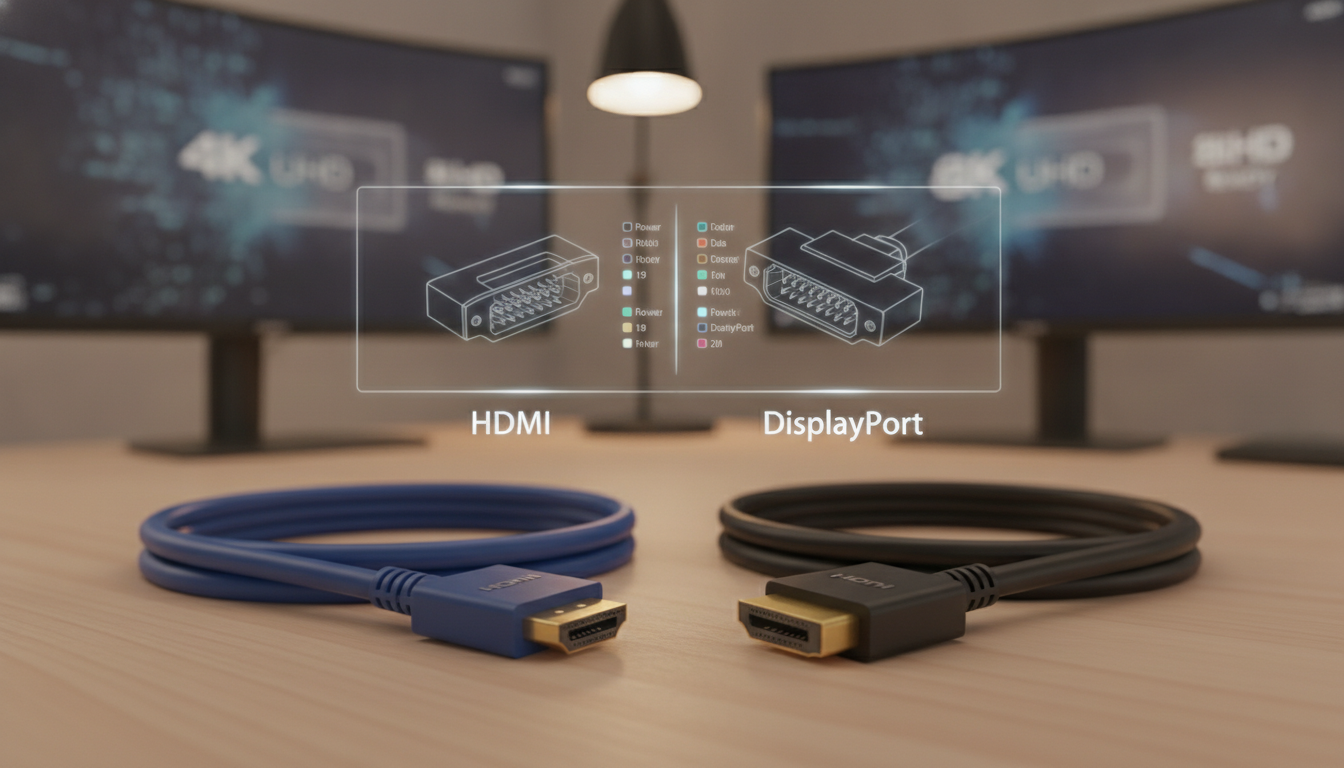
The debate of hdmi vs displayport comes up every time you set up a new screen. Both send audio and video to your TV, PC monitor, or gaming console. HDMI has 19 pins and a rounded shape. DisplayPort has 20 pins and a rectangular body with a built-in locking clip. Yet, most people grab whichever cable is closest without a second thought.
Understanding the monitor cable differences between these two standards saves you money and frustration. HDMI is the most common in living rooms and entertainment centers worldwide. DisplayPort is key for PC desks, gaming rigs, and professional media workstations.
Both cables do the same basic job. The small gaps in features, speed, and device support can make a big difference for your specific setup. This guide breaks down everything you need to pick the right one with confidence.
Key Takeaways
- HDMI and DisplayPort both transmit audio and video but differ in pin count, connector shape, and target use cases.
- HDMI is the most widely supported audio video interface, found on TVs, consoles like PlayStation and Xbox, and streaming devices like Roku and Apple TV.
- DisplayPort is the go-to choice for PC monitors, high-refresh-rate gaming, and professional multimedia production.
- Monitor cable differences between the two standards affect resolution limits, refresh rates, and multi-display support.
- DisplayPort includes a physical locking mechanism that prevents accidental disconnection during use.
- Choosing the right cable depends on your devices, your display goals, and your budget.
Introduction to HDMI and DisplayPort
Two cable standards are big in digital video and audio. Before we compare HDMI cables, let’s know what each does. They both carry pictures and sounds, but in different ways.
What is HDMI?
HDMI means High-Definition Multimedia Interface. It has a 19-pin setup to send both video and audio in one cord. You’ll see it on Blu-ray players, TVs, laptops, and gaming consoles from Sony and Microsoft.
HDMI comes in three sizes for different devices:
- Standard HDMI — used in TVs and desktop monitors
- Mini HDMI — common on tablets and some cameras
- Micro HDMI — built into compact recording equipment and small devices
HDMI supports top audio formats like Dolby Atmos. It also gives strong video, great for low-brightness scenes.
What is DisplayPort?
DisplayPort was made by VESA (Video Electronics Standards Association). It has a 20-pin connector with a built-in lock. This lock keeps the cable in place during use, which pros like.
One big DisplayPort benefit is Multi-Stream Transport (MST). It lets you connect up to four displays from one cord. Gamers and multimedia pros on PC use this every day.
| Feature | HDMI | DisplayPort |
|---|---|---|
| Pin Count | 19 pins | 20 pins |
| Locking Mechanism | No | Yes |
| Multi-Display from One Port | Not supported | Up to 4 displays (MST) |
| Common Devices | TVs, Blu-ray players, consoles | PC monitors, workstations |
| Size Variants | Standard, Mini, Micro | Standard, Mini |
Knowing these basics helps us dive deeper into how each cable handles resolution, refresh rates, and real-world performance.
Key Differences Between HDMI and DisplayPort
Choosing the right 4K display cable is all about knowing what each standard offers. Both HDMI and DisplayPort send video and audio over one connection. The main differences are in bandwidth, signal handling, and peak performance.
Signal Type and Quality
DisplayPort uses a packet-based method, like Ethernet. This gives it a bandwidth advantage. HDMI has a different design, good for consumer electronics but limited at high resolutions.
Both support Variable Refresh Rate (VRR). VRR makes sure your display and source device’s frame rates match. This stops screen tearing and stuttering in fast content.
Resolution and Refresh Rates
A quick look at refresh rates shows big differences. HDMI 2.1 can do 4K 120Hz natively and up to 240Hz at lower resolutions. DisplayPort 1.4 with DSC compression can also do 4K at 144Hz, great for gaming.
For a 4K 144Hz setup, the right GPU and cable are key. This expert guide to GPUs for 144Hz shows cards like the NVIDIA RTX 3090 and AMD RX 6900 XT work with both HDMI 2.1 and DisplayPort 1.4 DSC at that level.
| Feature | HDMI 2.1 | DisplayPort 1.4 (DSC) |
|---|---|---|
| Max Bandwidth | 48 Gbps | 32.4 Gbps (with DSC) |
| 4K Max Refresh Rate | 120Hz | 144Hz |
| VRR Support | Yes | Yes (Adaptive-Sync) |
| Best Use Case | TVs, consoles | PC monitors, workstations |
For graphic design and professional work, DisplayPort is better. It offers sharper images at higher resolutions and faster refresh rates. For home entertainment, HDMI 2.1 in a quality 4K display cable works well too.
Use Cases for HDMI
HDMI is the most common port on TVs, streaming sticks, and game consoles in the U.S. It’s used for almost all connections to living room screens. Let’s explore where HDMI truly excels.
Home Theater and TVs
Most TVs from Samsung, LG, and Sony come with multiple HDMI ports. HDMI is the default connection for big screens. A six-foot cable works well, and quality stays good up to 25 feet.
Connecting a laptop to a projector or big screen? HDMI is your best choice. Most projectors in offices and classrooms use HDMI. You won’t need extra cables or adapters.
Gaming Consoles and Streaming Devices
The PlayStation 5 and Xbox Series X use HDMI as their only video output. Streaming devices like Roku and Apple TV 4K also use HDMI. Knowing about HDMI 2.1 specs helps you get the best from these devices.
Here’s a quick comparison of HDMI versions on today’s consoles and media players:
| HDMI Version | Bandwidth | Max Resolution at 60Hz | Max Resolution at Higher Refresh |
|---|---|---|---|
| HDMI 2.0 | 18 Gbps | 4K at 60Hz | 1080p at 240Hz |
| HDMI 2.1 | 48 Gbps | 8K at 30Hz | 4K at 144Hz |
HDMI 2.1 brings smoother gameplay and sharper visuals. If you have a next-gen console, using an HDMI 2.1 cable unlocks its full potential.
- PS5 and Xbox Series X need HDMI 2.1 for 4K at 120Hz
- Apple TV 4K supports HDMI 2.1 for Dolby Vision at high frame rates
- Most 2024 mid-range TVs have at least one HDMI 2.1 port
Use Cases for DisplayPort
DisplayPort is great for work and desktop computers. It’s perfect for those with many screens or making videos. Knowing the difference between cables helps you choose the right one for your needs.
Computer Monitors
DisplayPort is best for PC setups. It lets you connect many screens from one port. This is the only way to link many monitors without extra stuff.
DisplayPort 1.4 has a huge 32.4 Gbps bandwidth. You can have 4K at 120Hz or 8K at 60Hz from one cable. This is great for smooth, clear gaming on your PC.
| DisplayPort Version | Max Bandwidth | Max Resolution | Best For |
|---|---|---|---|
| DisplayPort 1.4 | 32.4 Gbps | 8K at 60Hz | Multi-monitor setups, 4K gaming |
| DisplayPort 2.0 | 80 Gbps | 16K at 60Hz | Future-proof professional workflows |
Modern Apple displays, like the Pro Display XDR, use DisplayPort. This means you don’t need HDMI. Knowing this helps you avoid buying the wrong cable.
Professional Audio/Visual Equipment
Video editors, 3D modelers, and broadcast pros use DisplayPort. It gives the color and refresh rates needed for accurate work.
DisplayPort 1.4 has features like Display Stream Compression (DSC). This lets you have high resolutions without losing image quality. This is key for pixel-perfect work on big or wide monitors.
- Supports 10-bit color for precise color grading
- Enables multi-stream transport for daisy-chained displays
- Delivers HDR metadata for professional mastering
Whether you work in design or broadcast, DisplayPort meets your needs. Next, we’ll look at how adapters help connect HDMI and DisplayPort devices.
Compatibility and Connectivity
Choosing the right audio video interface is all about what your devices support. Not every port works with every cable. Mixing standards can be tricky. Let’s look at what you need to know about adapters and device support.
Adapters and Converters
Switching between HDMI and DisplayPort isn’t simple. You need active adapters to change the signal. The quality will match the lowest specs of your devices.
Standard dongle adapters lose features like daisy-chaining when going to HDMI. For multiple monitors from one DisplayPort, you need a DisplayPort-to-HDMI hub. Your system and graphics card must support MST for this to work.
- HDMI-to-DisplayPort adapters differ from DisplayPort-to-HDMI adapters — they are not interchangeable
- Active adapters cost more but handle signal conversion properly
- Daisy-chaining is lost when converting DisplayPort output to HDMI
- MST requires compatible graphics cards, monitors, and OS support
Device Support
HDMI is more common in consumer electronics. TVs, Blu-ray players, gaming consoles, laptops, and streaming sticks all use HDMI. It’s the top choice in most homes and offices.
DisplayPort is mainly for desktop monitors and professional workstations. High-end monitors from Dell, LG, and ASUS often have both ports. But, budget screens usually have HDMI only.
| Device Type | HDMI Support | DisplayPort Support |
|---|---|---|
| TVs | Standard on all models | Rare |
| Gaming Consoles | Standard on all models | Not available |
| Desktop Monitors | Common | Common on mid-to-high-end |
| Laptops | Common (or via USB-C) | Select business/gaming models |
| Desktop Graphics Cards | Standard | Standard |
Knowing your devices helps you choose the right cable before buying adapters.
Audio Capabilities

Sound quality is as important as picture quality. HDMI and DisplayPort send both audio and video in one cable. This means no extra wires for your setup.
Audio Return Channel (ARC) in HDMI
HDMI has a cool feature called Audio Return Channel (ARC). It lets your TV send audio to a soundbar or AV receiver through one cable. This makes your setup neat and simple.
The newer Enhanced Audio Return Channel (eARC) is even better. It supports Dolby Atmos and DTS:X and fixes timing issues. Make sure your TV’s HDMI port says eARC or ARC before you connect.
Multi-Channel Audio in DisplayPort
DisplayPort is great for high-quality audio. It can carry up to 8 channels of 24-bit, 192 kHz audio. This is perfect for workstations and multi-monitor setups.
USB-C cables can also support DisplayPort and HDMI output. This gives you flexible options from one port.
| Audio Feature | HDMI (eARC) | DisplayPort 1.4 |
|---|---|---|
| Max Audio Channels | 32 channels | 8 channels |
| Dolby Atmos Support | Yes | No |
| Audio Return Channel | Yes (ARC/eARC) | Not available |
| Max Audio Bit Depth | 24-bit | 24-bit |
| Max Sample Rate | 192 kHz | 192 kHz |
Choose HDMI for home theaters or DisplayPort for desktops. Knowing about cable length and signal quality is key for a great setup.
Cable Length and Limitations
Cable length is very important for setting up your workspace or home theater. The distance between your device and screen affects picture quality. Knowing each cable type’s limits helps you plan with confidence.
Maximum Cable Length for HDMI
In any HDMI cable comparison, length is key. Standard HDMI cables are 6 feet long. You can stretch an HDMI cable up to about 25 feet for a clean signal.
Going over 25 feet lowers signal quality. Colors may look wrong, and you might see flickering. Active HDMI cables or signal boosters can help but cost more.
Maximum Cable Length for DisplayPort
DisplayPort cables have a big advantage in length. They can send a strong signal up to 49 feet — almost double HDMI’s limit at full quality.
The standard 6-foot cable works best. DisplayPort is great for connecting multiple monitors to one source. It’s perfect for offices and creative spaces where screens are far apart.
| Feature | HDMI | DisplayPort |
|---|---|---|
| Standard Cable Length | 6 feet | 6 feet |
| Maximum Reliable Length | 25 feet | 49 feet |
| Signal Degradation Point | Beyond 25 feet | Beyond 49 feet |
| Daisy-Chain Support | No | Yes |
| Active Cable Option | Yes | Yes |
For long distances, DisplayPort is better. For short distances in a living room, HDMI is fine. Pick based on your specific distance needs for the best picture.
Future-Proofing: HDMI 2.1 vs. DisplayPort 2.0

Choosing the right display standard today shapes your setup for years to come. Both HDMI 2.1 and DisplayPort 2.0 push boundaries in raw bandwidth and visual fidelity. Understanding where each standard excels helps you invest wisely.
Bandwidth and Features
HDMI 2.1 delivers up to 48 Gbps of bandwidth. This supports 4K at 120Hz and 8K at 60Hz. NVIDIA G-SYNC relies on HDMI 2.1 for variable refresh rate support, making it a strong pick for high-end gaming.
DisplayPort 2.0 raises the bar to 77.37 Gbps — reaching up to 80 Gbps in its highest mode. This enables 8K at 120Hz and even 16K at 60Hz with HDR active. For creative professionals working with massive resolutions, that gap matters.
Many current monitors and docking stations still build around DisplayPort 1.4 features like DSC (Display Stream Compression) and daisy-chaining. These remain relevant for multi-monitor workflows. If you need a dock that supports both standards for a compact laptop, explore options at docking stations for 13-inch laptops.
| Feature | HDMI 2.1 | DisplayPort 2.0 |
|---|---|---|
| Max Bandwidth | 48 Gbps | 80 Gbps |
| 4K Support | 120Hz | 240Hz |
| 8K Support | 60Hz | 120Hz |
| 16K Support | Not supported | 60Hz with HDR |
| USB-C Alt Mode | No | Yes |
| Variable Refresh Rate | Yes (VRR) | Yes (Adaptive-Sync) |
Adoption in New Devices
HDMI 2.1 has gained wide traction in TVs, gaming consoles like the PlayStation 5 and Xbox Series X, and streaming devices. It is the default in most living-room setups.
DisplayPort 2.0 adoption is growing among PC monitors and laptops. USB-C DisplayPort Alt Mode lets you send high-definition video through a single USB-C cable. This is useful for:
- Thunderbolt 4 docking stations with multi-display support
- Ultrabooks and compact laptops using a single-cable workflow
- Professional editing monitors requiring peak color accuracy
Your choice depends on your primary device ecosystem. TV and console users benefit most from HDMI 2.1. PC-centric professionals get more headroom from DisplayPort 2.0 and its backward compatibility with DisplayPort 1.4 features.
Pricing and Availability
Your budget is key when choosing a 4K display cable. Both HDMI and DisplayPort cables are affordable. Prices vary based on version, length, and quality.
Cost of HDMI Cables
HDMI cables are everywhere. You can find them at grocery stores, gas stations, big-box retailers, and online. This makes prices competitive and easy to find.
A basic HDMI 2.0 cable costs $5 to $15 for a standard length. HDMI 2.1 cables for gaming cost $15 to $40. High-end options can be over $100, offering better quality.
Cost of DisplayPort Cables
DisplayPort cables are less common in stores. You can find them at specialty electronics shops or online at Amazon and Newegg.
Standard DisplayPort 1.4 cables cost $8 to $20. Newer DisplayPort 2.0 cables are $20 to $50. Premium options from Wireworld Cable Technology are available for demanding needs.
| Feature | HDMI Cable | DisplayPort Cable |
|---|---|---|
| Basic Cable Price | $5–$15 | $8–$20 |
| Premium Cable Price | $15–$40 | $20–$50 |
| Retail Availability | Widely available | Specialty and online stores |
| Best 4K Display Cable Version | HDMI 2.1 | DisplayPort 1.4 / 2.0 |
Spending a few extra dollars on a quality cable protects your investment in screens and devices. Whether for gaming or home theater, the right cable saves money in the long run.
Choosing the Right Option for Your Needs

The hdmi vs displayport debate is about your specific setup. Before buying a cable or picking a port, check four things. These are your monitor’s input specs, your graphics card’s output, your target resolution and refresh rate, and your HDR or adaptive sync needs.
Factors to Consider
First, check if your devices are compatible. Not all laptops, monitors, or graphics cards support both standards. If you use a laptop dock with multiple screens, DisplayPort is better. HDMI is great for a single screen.
Your performance needs are also important. A quick refresh rate comparison between HDMI 2.1 and DisplayPort 1 shows both can handle demanding modes. DisplayPort 1.4 offers up to 25.92 Gbps bandwidth. HDMI 2.1 can handle up to 48 Gbps raw.
| Factor | DisplayPort 1.4 | HDMI 2.1 |
|---|---|---|
| Multiple Monitors | Daisy-chain supported | One display per port |
| 4K 144 Hz Support | Yes, with DSC | Yes, with Ultra High Speed cable |
| Console Gaming | Not supported | Full support |
| 1440p 240 Hz | Supported on compatible monitors | Supported on designed displays |
| Future Bandwidth Headroom | Moderate | High |
Personal Preferences
Think about your future needs. Choosing the right standard now saves you from future replacements. If you game on a PC, DisplayPort is a good choice. For console gaming, HDMI is better.
- Choose DisplayPort for desktop monitors and multi-screen workflows
- Choose HDMI for TVs, consoles, and single-screen setups
- Check that your cable certification matches the bandwidth your display requires
In the hdmi vs displayport debate, neither option is universally better. The right choice depends on your gear and goals.
Conclusion: Making an Informed Decision
Choosing the right audio video interface depends on how you use your devices. HDMI and DisplayPort each have their own strengths. The best choice depends on your setup and goals.
Summary of Key Points
HDMI is great for home entertainment, gaming consoles, and streaming devices. It works well with TVs, Blu-ray players, and sound systems. It’s also affordable.
DisplayPort is best for gaming PCs, professional workstations, and multi-monitor setups. It offers higher refresh rates and lower latency. When comparing monitor cable differences, HDMI 2.1 supports up to 10K resolution. DisplayPort 2.0 goes up to 16K.
Final Thoughts on HDMI and DisplayPort
Your performance will match the lowest version supported by your devices and cable. Version compatibility is key. Always check the specs before buying.
Many devices only have one port, so adapters can help. Think about your current needs and what your devices support. Also, consider future upgrades. Making a smart choice now saves you time and money later.