
Ever run out of USB ports when you really needed one? Maybe while rushing to meet a deadline or setting up for a big video call?
You’re not alone. Most laptops have only a few ports. This can be a problem when you need to use many USB devices at once. You might need a mouse, a keyboard, an external drive, and a webcam.
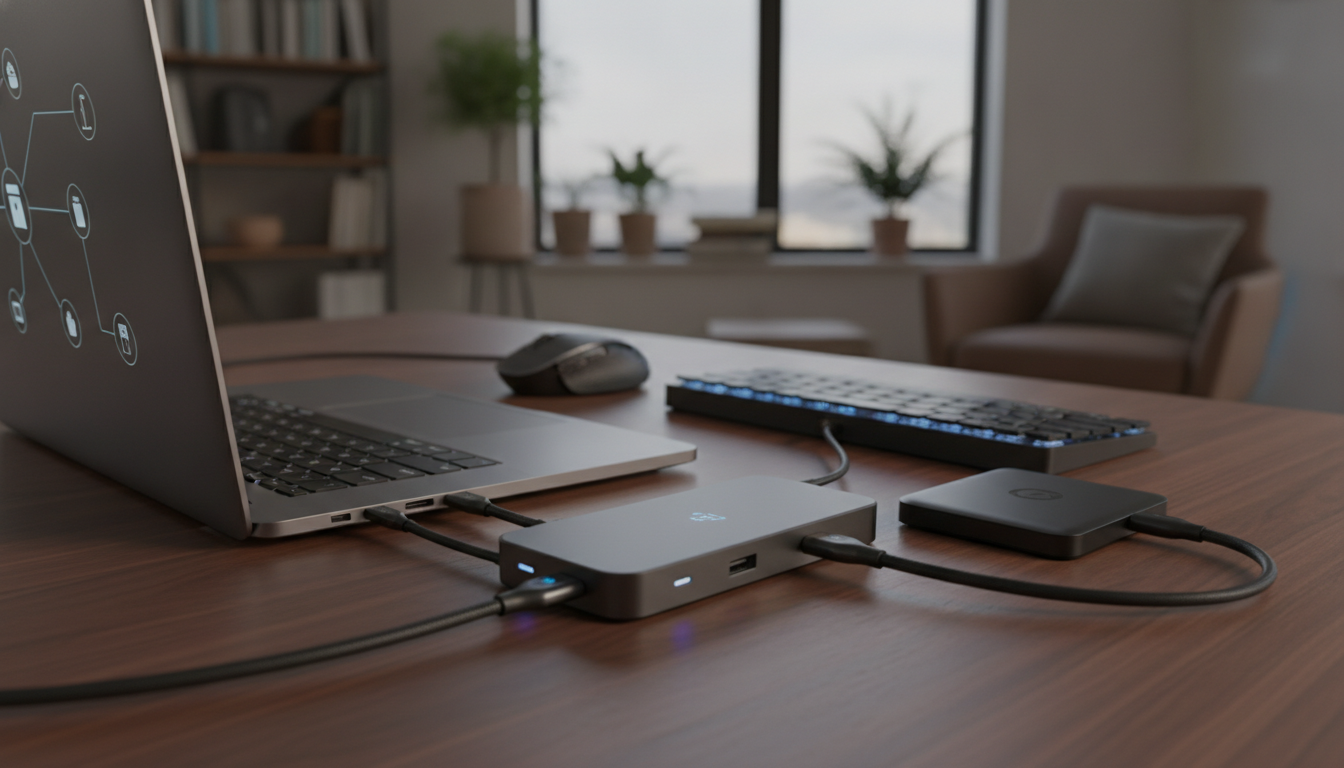
A USB hub is like a power strip for your computer. It turns one USB port into many. This lets you plug in all your devices with just one connection. Brands like Anker and Sabrent make these devices very popular.
USB port expanders come in different forms. Some are small boxes for your desk. Others plug right into your laptop. There are also designs with short cables to keep things neat.
One of the best things about USB hubs is how easy they are to use. Unplug the hub, and all your devices disconnect at once. Plug it back in, and you’re ready to go. Some hubs even charge your laptop or let you check if your laptop has a USB 3 for faster speeds.
USB networks can have up to 127 ports through connected hubs. This is more than most people will ever need. But it shows how flexible this technology can be.
Key Takeaways
- A USB hub expands a single port into multiple ports, working like a power strip for your computer.
- All devices connected through one hub share that port’s available bandwidth.
- USB hubs come in compact, external box, and short-cable designs to fit different workspace needs.
- Some hubs support power delivery, charging your laptop while connecting multiple USB devices.
- A USB port expander lets you attach and remove all your peripherals in a single step.
- You can daisy-chain hubs to reach up to 127 USB ports on a single system.
Understanding USB Hubs
Before you connect a single device, it helps to know what is a usb hub at its core. It’s like a simple tool that turns one USB port into several. Let’s break down the basics so you can make a smart choice.
Definition of a USB Hub
A USB hub is a small device that expands a single USB port into multiple ports. It lets you plug in several peripherals—like a mouse, keyboard, and flash drive—at the same time. This is useful when your laptop has just one or two built-in ports.
How Data Flows Through a Hub
Understanding how usb hubs work is straightforward. The hub receives data from your computer’s USB port and routes it to each connected device. It collects data back from those devices and sends it upstream to the computer.
USB 2.0 hubs broadcast data to all connected devices at once, using transaction translators to handle speed differences. USB 3.0 hubs improved this with point-to-point routing. This means data goes only to the specific device that needs it, cutting congestion and saving power.
Popular Hub Categories
The usb hub functionality you need depends on the type you choose. Here’s a quick comparison:
| Hub Type | Power Source | Best For | Portability |
|---|---|---|---|
| Powered (External Adapter) | Wall outlet | External hard drives, charging tablets | Moderate |
| Unpowered (Bus-Powered) | Computer USB port | Keyboards, mice, flash drives | High |
| Internal | Computer power supply | Desktop builds needing extra ports | None |
| External Standalone | Varies | Flexible setups, travel use | High |
Choosing between these types sets the stage for picking the right benefits, which we’ll explore next.
Benefits of Using a USB Hub
A usb port expander changes how you use your devices every day. It cuts down on cable mess and keeps your gadgets charged. Here are the main reasons to get one.
Increased Connectivity Options
Laptops usually have only two or three USB ports. This isn’t enough when you need to use a keyboard, mouse, printer, and external hard drive. A usb port expander fixes this problem quickly.
You can plug in many usb devices through one port on your computer. This means you don’t have to unplug one device to plug in another. Canyon offers hubs with 4 to 13 ports, so you can find the perfect one for you.
Enhanced Device Management
One big advantage of a usb hub is a neater workspace. Instead of cables everywhere, devices connect to one spot.
This makes switching between devices easy. Want to get files from a camera? Just plug it in without messing with your other devices. Here’s how a hub makes your work easier:
- Connect many usb devices like mice, keyboards, and audio interfaces at once
- Protect your computer’s USB ports from wear and tear
- Save time by not constantly swapping cables
Improved Charging Capabilities
Not all hubs are the same when it comes to charging. A powered usb port expander gets power from a wall outlet. This lets each device charge fully.
| Feature | Powered Hub | Unpowered Hub |
|---|---|---|
| Device Charging | Charges phones and tablets well | May charge slowly or not at all |
| Power per Port | Up to 900 mA (USB 3.0) | Shared 500 mA total |
| Best For | Many usb devices that need a lot of power | Low-power items like flash drives |
Powered hubs keep your devices charged and working well. This is great for external drives or audio interfaces that need steady power.
Common Types of USB Hubs
When you pick a USB hub, it’s good to know the types. Each type has its own use and price. Let’s look at the three main kinds you’ll find.
Powered vs. Unpowered USB Hubs
The choice between powered and unpowered hubs depends on your needs. A powered hub needs a wall outlet and gives 500 mA to each port. It’s best for big devices like printers and scanners.
An unpowered hub gets power from your computer’s USB port. It has up to four ports and gives about 100 mA to each. It’s perfect for smaller devices like keyboards and mice.
- Powered hubs support big devices but cost more
- Unpowered hubs are small and easy to carry
- Dynamic hubs change modes based on power
USB 2.0 vs. USB 3.0 Hubs
Speed is key when moving big files. USB 3.0 hubs are faster, going up to 5 Gbps. That’s ten times faster than USB 2.0’s 480 Mbps. USB 3.1 Gen 2 goes even faster, to 10 Gbps.
| Feature | USB 2.0 | USB 3.0 | USB 3.1 Gen 2 |
|---|---|---|---|
| Max Speed | 480 Mbps | 5 Gbps | 10 Gbps |
| Best For | Basic peripherals | External drives, video | High-bandwidth workflows |
| Transaction Translators | Not applicable | Single or multiple | Multiple |
| Average Price | $8–$15 | $15–$30 | $25–$50 |
Multi-Port USB Hubs
USB hubs come in many port counts. You can find 4-port hubs for simple needs. But, if you need lots of ports, look for 7-port or bigger hubs. These offer better performance for many devices.
Factors to Consider When Choosing a USB Hub
First, you need to know what a USB hub is. Then, you must think about what you need. You should match the hub to your devices and how fast you need things to work.
Number of Ports Required
Count how many devices you use every day. A 4-port hub is good for a keyboard, mouse, and an external drive. For more devices, like webcams or printers, choose a 7- or 10-port hub.
Pro tip: Always choose a hub with a few extra ports. Your devices will grow over time.
Compatibility with Devices
Not all hubs work with all devices or systems. Make sure the hub works with your OS, like Windows or macOS. Look for extra features like Ethernet ports or SD card slots.
- Confirm USB-A or USB-C connector type for your laptop
- Verify power delivery specs if you plan to charge smartphones
- Choose compact, durable builds for travel use
Data Transfer Speed Requirements
Speed is important, like when moving big files. The USB standard your hub uses affects how fast data moves.
| USB Standard | Max Transfer Speed | Best Use Case |
|---|---|---|
| USB 2.0 | 480 Mbps | Keyboards, mice, flash drives |
| USB 3.0 | 5 Gbps | External hard drives, video devices |
| USB 3.1 Gen 2 | 10 Gbps | Large file transfers, SSDs |
For big files or backups, use a USB 3.0 or 3.1 hub. It’s faster. For simple devices, USB 2.0 is cheaper and works well.
Best Practices for Using a USB Hub
Using a usb port expander well needs some planning. A few smart habits can prevent problems like disconnections and slow speeds. Knowing how usb hubs work helps set up a reliable system.
Organizing Your Workspace
How ports are arranged is important. Hubs with ports in a row can block each other. One wide plug can cover the next port.
Look for hubs with perpendicular port layouts or octopus-style designs. These have short cables branching out. Star-shaped hubs have ports facing different directions to avoid blocking.
- Keep your hub within arm’s reach on a clean, flat surface
- Route cables away from heat sources and foot traffic
- Use short cables to prevent signal loss during high-speed transfers
Proper Device Connections
Not all ports on your hub are the same. Many seven-port hubs have a 1A power supply. But, all ports together might need 3.5A or more.
Pair power-hungry gadgets like external drives with a Thunderbolt 3 or USB-C port on your laptop. Use hub ports for keyboards, mice, and other low-draw accessories.
Preventing Overloading
The USB specification warns against daisy-chaining bus-powered hubs. This setup drains power and creates unstable connections.
| Risk Factor | Symptom | Solution |
|---|---|---|
| Bus-powered hubs in series | Devices disconnect randomly | Use a powered hub instead |
| Non-compliant devices drawing excess power | Hub overheats or shuts down | Check device power specs before connecting |
| Too many high-power devices on one hub | Slow charging or data errors | Spread devices across powered ports |
A powered hub is your safest bet for running several devices at once. It supplies consistent energy to each port without taxing your computer’s built-in power.
Use Cases for USB Hubs

Understanding what a usb hub is is key. They fit into many parts of our lives. They help gamers and office workers alike.
For Gamers and Streamers
Gaming and streaming need lots of connections. You might use a keyboard, mouse, and more all at once. A good hub makes managing these easy.
Multiport adapters with USB 3.2 ports and HDMI output are great for streamers. They can power everything with a single charger. This charger can even charge your phone and support an 8K HDMI cable.
For Office Work and Productivity
Professionals face port shortages often. You might need to connect a printer and more. USB hubs are a big help here.
| Use Case | Devices Connected | Recommended Hub Type |
|---|---|---|
| Remote Office | Webcam, keyboard, mouse, external monitor | Powered USB-C multiport adapter |
| Corporate Desk | Printer, scanner, external drive, headset | USB 3.0 powered hub (7+ ports) |
| Digital Nomad | Phone, portable SSD, mouse | Compact USB-C travel hub |
For Home Entertainment Systems
Living rooms can also use a hub. Smart TVs have few ports. A hub lets you connect many devices at once.
Designers and music producers also use hubs. They connect drawing tablets and audio interfaces. The right hub keeps everything working well.
Troubleshooting Common USB Hub Issues
Even the best USB hub can have problems. Knowing how they work helps you solve issues fast. Here are three common problems and how to fix them.
Not Recognized by the Computer
When your computer ignores your hub, it’s a big problem. The hub sends a special signal to your computer. If this signal fails, your computer won’t see the hub.
Try these steps to fix it:
- Unplug the hub, wait ten seconds, and reconnect it.
- Test a different USB port on your computer.
- Check that all cables are firmly seated at both ends.
- Disable the “Allow the computer to turn off this device to save power” setting in Device Manager — you can find a step-by-step guide for USB port fixes that walks you through this process.
Overheating Problems
Overheating is a big risk with many devices on one hub. Many 7-port hubs can’t handle all the power.
Keep your hub cool by using fewer devices. Make sure air can move around the hub. If it’s still too hot, choose a hub with better cooling.
Slow Data Transfer Speeds
Slow speeds often come from version mismatches. A USB 2.0 hub can slow down your USB 3.0 devices.
| Issue | Cause | Fix |
|---|---|---|
| USB 3.0 device running at USB 2.0 speed | Hub only supports USB 2.0 | Upgrade to a USB 3.0 hub |
| Intermittent slowdowns | Too many devices sharing bandwidth | Disconnect unused peripherals |
| Consistently poor speeds | Low-quality or damaged cable | Replace with a certified USB 3.0 cable |
USB 3.0 hubs handle 3.0 and 2.0 traffic separately. This prevents slowdowns. You can find quick fixes for common USB hub problems. Make sure your hub matches your devices for the best speed.
USB Hub vs. USB Docking Station

What’s the difference between a USB hub and a docking station? Both help you connect more devices. But they do it in different ways. Knowing the difference helps you choose wisely.
Key Differences Explained
A USB hub adds more ports from one spot. It’s simple and focused. A docking station does more. It has video, audio, Ethernet, and USB all in one.
When choosing between powered and unpowered USB hubs, some can charge your laptop. This makes them like basic docking stations. True docking stations support many displays and charge your laptop well. Thunderbolt 4 docking stations are fast and can handle many monitors.
When to Choose a Docking Station
Choose a docking station for comprehensive connectivity. This is best if you:
- Connect two or more monitors every day
- Need Ethernet for a stable network
- Want one cable to charge and connect your laptop
- Use many peripherals like printers and keyboards at once
Cost Considerations
Cost matters a lot. Here’s how the two options compare:
| Feature | USB Hub | Docking Station |
|---|---|---|
| Price Range | $10–$60 | $80–$300 |
| Video Output | Rare or limited | HDMI, DisplayPort, or both |
| Ethernet Port | Not typical | Gigabit or 2.5 Gigabit |
| Power Delivery | Up to 30W (powered models) | Up to 100W |
| Extra Adapters Needed | Yes (video, network) | No |
Docking stations cost more but save you money in the long run. They don’t need extra adapters. Look for good reviews and long warranties to get the best deal.
Environmental Considerations
Your tech choices affect the planet. Choosing a usb hub wisely can help you and the environment. Let’s explore what’s important.
Energy Efficiency of Hubs
A standard USB port uses about 2.5 watts at 5 volts. This adds up with many devices. Knowing the difference in energy use helps save.
Bus-powered hubs get power from your computer. They use no power when it’s off. Self-powered hubs always use power, wasting energy. Dynamic-powered hubs are smart, using power only when needed.
| Hub Type | Standby Power Use | Energy Impact |
|---|---|---|
| Bus-Powered | None when PC is off | Low |
| Self-Powered | 0.5–2 watts continuous | Moderate |
| Dynamic-Powered | Minimal (auto-switching) | Lowest |
Longevity and Sustainability
Durable usb hubs cut down on waste. A good hub lasts five years or more. Cheap ones break quickly, adding to waste.
- Choose hubs with aluminum or strong plastic
- Read reviews for long-lasting hubs
- Opt for hubs with replaceable cables
Eco-Friendly Brands
Brands like Anker and Belkin focus on green packaging. Anker uses soy-based inks and recycled cardboard.
Buying a long-lasting, energy-saving hub saves money and the planet.
Future Trends in USB Hub Technology

The world of USB is changing fast. New standards are making usb hubs faster, smarter, and more versatile. Soon, you’ll see faster, smarter, and more versatile usb hubs.
Innovations in USB Technology
USB4 and Thunderbolt 4 are changing how we think about speed. They support data transfers up to 40 Gbps and power delivery up to 100 W. This means you can charge a laptop and run an external GPU at the same time.
USB 3.0 introduced point-to-point routing. It sends data packets directly to devices. This reduces congestion and saves power. Modern usb 3.0 hubs also have individual port power switches for better control.
| USB Standard | Max Data Speed | Max Power Delivery |
|---|---|---|
| USB 3.2 Gen 1 (USB 3.0) | 5 Gbps | 15 W (5 V/3 A) |
| USB 3.2 Gen 2 | 10 Gbps | 100 W (20 V/5 A) |
| USB4 | 20 Gbps | 100 W |
| Thunderbolt 4 | 40 Gbps | 100 W |
USB-C Hubs and Their Advantages
USB-C multiport adapters offer a lot. They have USB PD charging, HDMI output, multiple USB 3.2 ports, and Ethernet. You can learn more about how USB-C cable quality affects hub choices. E-Marker certified cables are key for safe, high-power connections.
The Rise of Wireless USB Hubs
Wireless USB hubs are becoming popular for clean desk setups. While wired hubs are faster, wireless hubs are great for presentations and casual file sharing. This area is changing fast.
Frequently Asked Questions About USB Hubs
You might still have questions about USB hubs. Let’s answer the most common ones. This will help you choose the right one for you.
What Are the Best USB Hubs on the Market?
Many USB hubs are highly praised. The Sabrent 7-Port USB 3.0 Hub has individual power switches. This gives you control over each port.
Canyon’s DS-12 has 13 ports, perfect for those with many devices. The Canyon DS-02 4-Port USB-C is small but powerful. It’s great for carrying in a laptop bag.
| Hub Model | Ports | Type | Best For |
|---|---|---|---|
| Sabrent 7-Port USB 3.0 | 7 | Powered | Home office setups |
| Canyon DS-12 | 13 | Powered | Multi-device professionals |
| Canyon DS-02 USB-C | 4 | Bus-powered | Travel and portability |
Can You Use Multiple Hubs Together?
Yes! You can use multiple hubs together. USB allows cascading up to seven tiers deep. This means up to 127 ports total.
But, bus-powered hubs can’t be chained together. Each hub you add takes up more slots. So, a powered hub is best for daisy-chaining.
Are USB Hubs Safe for Your Devices?
Good hubs are safe for your devices. Self-powered hubs give 500 mA per port. Bus-powered ones give 100 mA each.
Look for hubs with good reviews and warranties. Make sure they meet safety standards.
- Choose perpendicular or star-shaped port designs to avoid blocking adjacent ports
- Avoid non-compliant hubs that skip power safety standards
- Never exceed the rated power draw when connecting multiple usb devices
Conclusion: Do You Need a USB Hub?
You now know what a USB hub is and how it can help. It makes one port into many, reducing cable mess. The big question is, which one is right for you?
Assessing Your Device Needs
Count all devices you plug in now. This includes your keyboard, mouse, printer, webcam, and external drives. Think about future additions too.
Home office workers find usb hub benefits in one place for all peripherals. Creative folks and digital nomads need fast, portable hubs for big files.
Final Recommendations for USB Hub Use
Choose a hub based on your needs. A basic four-port USB 2.0 hub is good for simple stuff and costs $10 to $30.
For external drives or fast charging, get a powered USB 3.0 hub. These cost $30 to $60 from brands like Anker or Sabrent.
Look for strong build, good reviews, and a solid warranty. A good USB hub is a small cost for more computer ports and a ready setup.