Digital painting and sketching platforms have revolutionized the art world, offering creatives new ways to express themselves. We've seen an explosion of digital tools that empower artists to create stunning works without ever touching a physical canvas. These platforms combine the flexibility of traditional art with the power of technology, allowing for experimentation, easy editing, and seamless sharing.
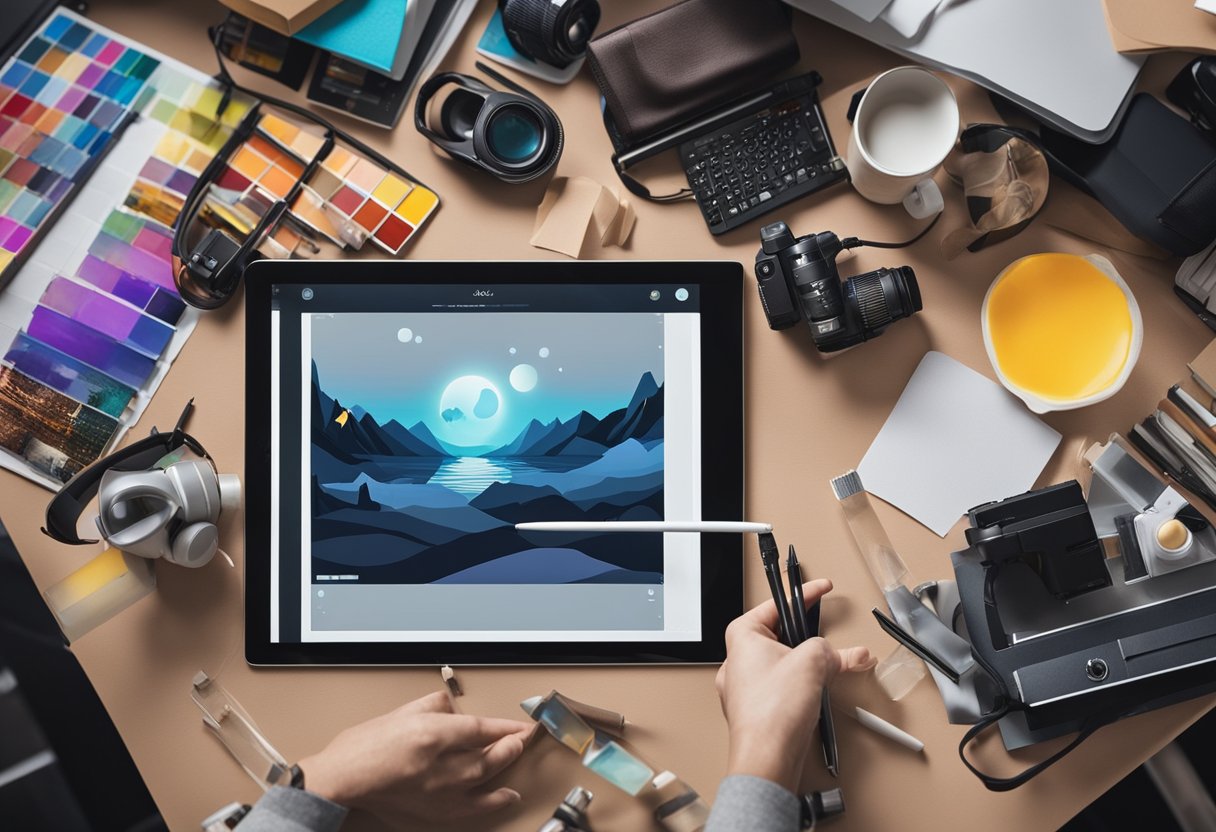
From professional-grade software to user-friendly mobile apps, there's a digital art solution for every skill level. We're particularly excited about how these tools are democratizing art, making it accessible to anyone with a device and a creative spark. The ability to undo mistakes, work in layers, and explore various textures and brushes has opened up new possibilities for artistic expression.
As we dive into the world of digital painting and sketching, we'll explore how these platforms are shaping the future of art. We'll look at the features that make them stand out and how they're being used by both hobbyists and professionals alike. Get ready to unleash your creativity in ways you never thought possible!
Key Takeaways
- Digital art platforms offer unparalleled flexibility and editing capabilities for artists
- These tools cater to all skill levels, from beginners to professional digital painters
- Digital painting software enhances creativity through features like layering and diverse brush options
Exploring Digital Art Platforms
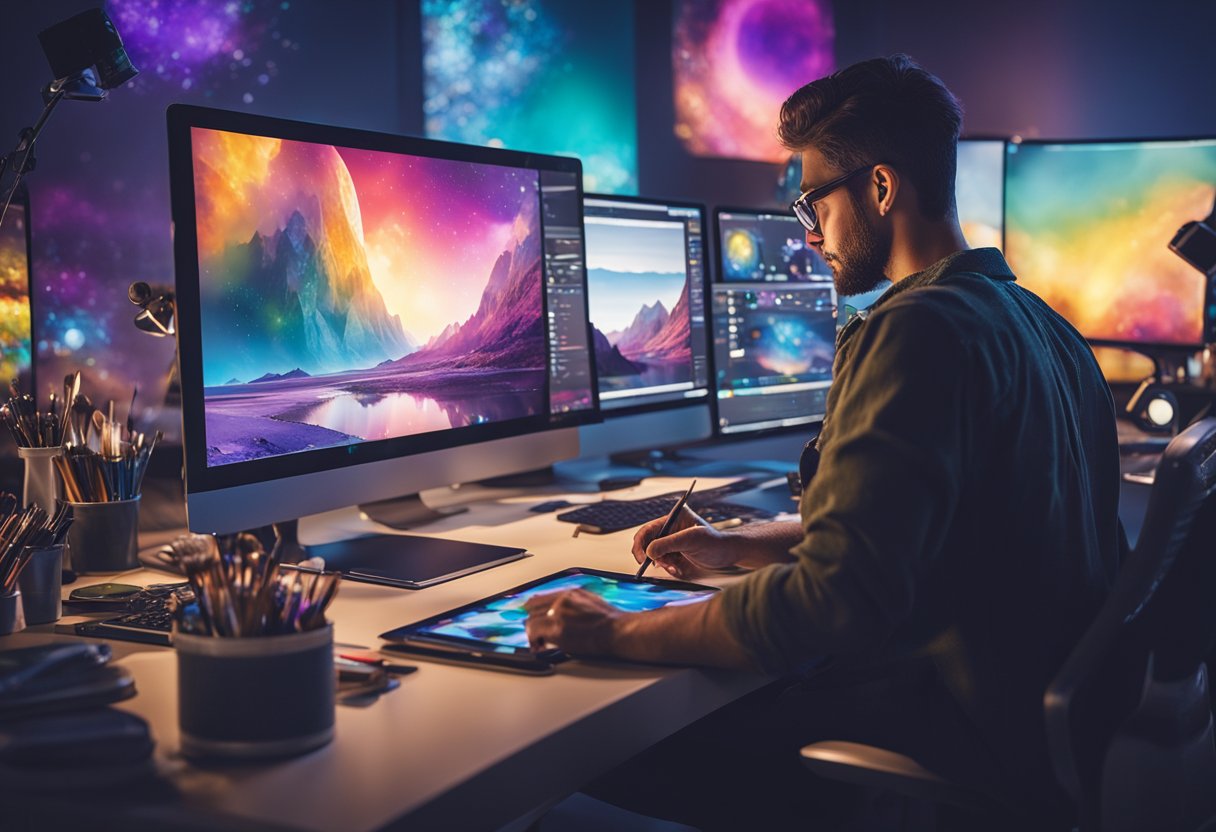
Digital art platforms have revolutionized the way artists create and share their work. These powerful tools offer a wide range of features and capabilities, catering to both beginners and professionals alike.
Understanding the Essentials
Digital art software provides artists with virtual canvases and tools to bring their ideas to life. We've seen a surge in popularity of apps like Procreate, which offers an intuitive interface and a vast array of brushes. Photoshop remains a powerhouse for digital painting and photo manipulation, with its extensive feature set and industry-standard status.
For those seeking a more traditional painting experience, Corel Painter 2023 simulates realistic brush strokes and textures. It's a favorite among illustrators and concept artists who want to maintain a natural feel in their digital work.
Comparing Proprietary and Open-Source Software
While proprietary software often leads in features and polish, open-source alternatives are gaining ground. Krita, a free and open-source digital painting program, has become a serious contender in the digital art world. It offers a robust set of tools and a customizable interface that rivals many paid options.
We've found that open-source platforms like Krita benefit from community-driven development, resulting in frequent updates and innovative features. On the other hand, proprietary software like Photoshop and Procreate often provide more streamlined workflows and better integration with other professional tools.
Ultimately, the choice between proprietary and open-source depends on individual needs and preferences. Many artists use a combination of both to leverage the strengths of each platform in their creative process.
User Interface Design
A well-designed user interface is crucial for digital painting and sketching platforms. It can make or break the user experience, affecting creativity and productivity. Let's explore how these platforms navigate workspace design and offer customization options for efficiency.
Navigating the Workspace
When we open a digital painting or sketching app, we're greeted by a canvas surrounded by tools. The best interfaces keep frequently used tools accessible while minimizing clutter. We often see a toolbar along the top or side, housing brushes, erasers, and color pickers. Layers are typically managed in a separate panel, allowing us to organize our work efficiently.
Many platforms now offer customizable workspaces. We can drag and drop panels, resize them, or hide them entirely. This flexibility lets us tailor the interface to our workflow. Some apps even remember our preferences, so we don't have to set up our workspace every time we start a new project.
Customization for Efficiency
Customization goes beyond just moving panels around. We can often create our own brushes, adjust tool properties, and set up shortcuts for our most-used functions. This level of personalization can significantly speed up our work.
Keyboard shortcuts are a game-changer for efficiency. We can assign keys to switch between tools, adjust brush sizes, or perform complex actions with a single press. Some platforms allow us to create custom shortcut sets for different types of projects.
Color management is another area where customization shines. We can save our favorite palettes, create custom swatches, and even import color schemes from images. This feature is invaluable for maintaining consistency across projects or working within brand guidelines.
Tools of the Trade
Digital painting and sketching platforms offer a diverse array of tools to unleash creativity. We'll explore the essential brushes and patterns that form the backbone of digital art, as well as the advanced editing features that take your work to the next level.
Brushes and Patterns
Brushes are the digital artist's best friends. We love experimenting with different brush types to achieve unique textures and effects. From soft, blendable brushes for smooth transitions to textured brushes that mimic traditional media, the options are endless.
Here are some popular brush categories:
- Pencil and charcoal
- Watercolor and ink
- Oil and acrylic
- Airbrush and spray paint
- Special effects (e.g., fur, grass, clouds)
Patterns add depth and interest to our artwork. We can create custom patterns or use pre-made ones for backgrounds, textures, or decorative elements. Many platforms offer pattern libraries and the ability to import or create our own.
Advanced Editing Features
Advanced editing features elevate our digital art from good to extraordinary. Blend modes allow us to combine layers in creative ways, producing effects like multiply, overlay, or screen. We love using the stabilizer for smooth, confident lines, especially when working with a stylus.
Filters and adjustments open up a world of possibilities:
- Color correction and grading
- Sharpening and blurring
- Noise and grain effects
- Light and shadow manipulation
Opacity control is crucial for building up subtle layers and creating translucent effects. We can adjust the opacity of individual brushstrokes or entire layers to achieve the perfect balance.
Working with Layers
Layers are the backbone of digital painting, offering flexibility and control over your artwork. We'll explore how to manage layers effectively and harness the power of blend modes and transparency to elevate your digital creations.
Mastering Layer Management
Let's dive into layer management! We start by creating a new layer for each element in our painting. This keeps things organized and easy to edit. Need to move that tree? No problem - just select its layer and shift it around.
Pro tip: Name your layers! "Background," "Character," "Foreground" - it'll save you headaches later. We love using folders to group related layers too. For complex pieces, this is a lifesaver.
Want to merge layers? Select them and hit Ctrl+E (Cmd+E on Mac). But wait! Make a duplicate first. You never know when you'll need that original layer again.
Blend Modes and Transparency
Blend modes are where the magic happens! They determine how layers interact with each other. "Multiply" darkens, perfect for shadows. "Screen" lightens - great for highlights. "Overlay" adds contrast and vibrance.
Experiment with opacity too. We often set our shadow layer to 50% opacity for a softer look. Try painting on a layer set to 30% opacity for subtle color adjustments.
Here's a quick cheat sheet:
- Normal: No blending
- Multiply: Darkens
- Screen: Lightens
- Overlay: Increases contrast
Remember, blend modes work differently depending on the colors involved. Play around and see what looks best for your piece!
Enhancing Creativity with Add-Ons
Digital painting and sketching platforms offer a wealth of possibilities, but add-ons take our creative potential to new heights. These powerful tools expand our artistic horizons and streamline our workflow.
Discovering the Power of Plugins
Plugins are game-changers in the digital art world. We've found that they can transform a basic sketching app into a powerhouse of creativity. For instance, GIMP, a popular open-source image editor, boasts an impressive array of plugins. These add-ons let us do everything from applying complex filters to automating tedious tasks.
Want to create stunning textures? There's a plugin for that. Need to simulate traditional media? Yep, there's one for that too. We love how plugins can turn a simple brush stroke into a cascade of particles or transform a flat image into a 3D masterpiece.
Expanding Your Toolkit
Customizable brushes are the secret weapons in our digital arsenal. We're always amazed at how a single brush can mimic anything from a delicate watercolor to a chunky oil paint texture. Many platforms allow us to create, import, and share custom brushes, opening up a world of artistic possibilities.
Here's a quick look at some must-have customizable brushes:
- Texture brushes
- Blending brushes
- Pattern-making brushes
- Fur and hair brushes
These brushes aren't just tools; they're extensions of our creativity. We can adjust size, opacity, and flow to achieve just the right effect. And the best part? We can save our favorite brush settings for future use, streamlining our workflow.
The Digital Canvas
Digital canvases revolutionize the way artists create, offering flexibility and precision unmatched by traditional mediums. We'll explore key aspects of digital canvases, including size considerations and the choice between vector and raster graphics.
Choosing the Right Size and Resolution
When setting up our digital canvas, size and resolution are crucial factors. We typically measure canvas size in pixels, with common dimensions ranging from 1920x1080 for HD work to 4000x3000 for high-resolution prints. Resolution, measured in pixels per inch (PPI), determines the image quality. For web graphics, we often use 72 PPI, while print work requires 300 PPI or higher.
It's important to consider our project's end use. Are we creating for social media, print, or large-format displays? Larger canvases with higher resolutions offer more detail but require more processing power and storage space.
Pro tip: Start with a larger canvas than you think you'll need. It's easier to scale down than up!
Vector vs. Raster Graphics
We face a key decision when choosing between vector and raster graphics for our digital canvas. Vector graphics use mathematical formulas to create shapes, allowing infinite scalability without loss of quality. They're perfect for logos, illustrations, and designs that need to be resized frequently.
Raster graphics, on the other hand, are made up of pixels. They're ideal for complex images with lots of color variation, like photographs. However, they can lose quality when scaled up.
Here's a quick comparison:
| Vector Graphics | Raster Graphics |
|---|---|
| Scalable | Fixed resolution |
| Smaller file size | Larger file size |
| Simple shapes | Complex images |
| Logos, icons | Photos, textures |
We often use both types in our projects, combining the strengths of each to create stunning digital art.
From Sketching to Final Piece
Digital art platforms have revolutionized the journey from initial sketches to polished masterpieces. We've seen remarkable advancements in tools that bridge the gap between traditional and digital methods, making the creative process more fluid and versatile than ever before.
Sketchbook to Software
Remember the days of lugging around heavy sketchbooks? Now, we can carry an entire studio in our pockets! Digital sketchbooks have become a game-changer for artists on the go. Apps like Procreate and Adobe Fresco offer an impressive array of brushes that mimic traditional media with uncanny accuracy.
We've found that these drawing apps shine in their ability to seamlessly blend different techniques. Want to start with a pencil sketch and transition to watercolors? No problem! The layers feature in most drawing software allows us to build our pieces step by step, just like we would on paper.
But it's not all about mimicking traditional media. Digital sketching tools offer unique advantages:
- Infinite undos (goodbye, eraser marks!)
- Color experimentation without wasting paint
- Easy resizing and repositioning of elements
Transformation and Perspective Tools
Gone are the days of struggling with rulers and compasses. Digital drawing software has given us superpowers when it comes to perspective and transformation. We're particularly excited about the perspective grids available in apps like Clip Studio Paint. They're a godsend for creating complex scenes with accurate depth.
Transform tools have also changed the game. Need to adjust the angle of that building you just drew? A few clicks, and it's done! We've found these features especially useful for:
- Quickly iterating on compositions
- Adjusting proportions without starting over
- Creating symmetrical designs effortlessly
The ability to manipulate our work so easily has opened up new creative possibilities. We can experiment more freely, knowing that major changes won't require hours of redrawing.
Sharing and Feedback
Digital painting and sketching platforms have revolutionized how artists share their work and receive feedback. These tools foster vibrant communities and facilitate collaborative learning experiences.
Community and Collaboration
We've seen a surge in digital platforms that make sharing artwork a breeze. Artists can now instantly upload their digital paintings and sketches to dedicated communities. These spaces aren't just for showing off finished pieces – they're bustling hubs of creativity. Many platforms allow users to share works-in-progress, inviting others to watch the creative process unfold in real-time.
Collaboration features have become increasingly sophisticated. We're talking about:
- Live drawing sessions where multiple artists can contribute to a single piece
- Group projects with shared canvases
- Art challenges that spark community-wide participation
These collaborative tools aren't just fun – they're pushing the boundaries of what's possible in digital art.
Learning from Peer Review
Feedback is the lifeblood of artistic growth, and digital platforms have made it more accessible than ever. We've noticed that many sites now offer robust commenting systems, allowing artists to receive detailed critiques on their work. Some platforms even include annotation tools, letting reviewers pinpoint specific areas for improvement.
But it's not just about receiving feedback – giving it is equally valuable. By analyzing others' work, artists develop a keener eye for composition, color theory, and technique. We've found that this reciprocal process creates a rich learning environment where everyone benefits.
Pro tip: When seeking feedback, be specific about what you're looking for. Ask questions like:
- "How's the lighting in this piece?"
- "Does the character's pose look natural?"
This approach tends to yield more helpful responses.
Frequently Asked Questions
Digital painting and sketching platforms offer a wide range of options for artists of all skill levels. We've compiled answers to some common questions to help you navigate the world of digital art software.
What software options are available for digital painting and sketching without any cost?
Several free digital painting and sketching platforms exist for artists on a budget. Krita is a powerful open-source option with a robust set of brushes and tools. GIMP provides a free alternative to Photoshop with extensive features for both painting and image editing. Autodesk SketchBook offers a user-friendly interface for sketching and illustration at no cost.
Which applications do professional artists commonly use for creating digital art?
Adobe Photoshop remains a staple in many professional artists' toolkits due to its versatility and industry-standard status. Corel Painter is favored for its realistic brush simulations. Clip Studio Paint has gained popularity among illustrators and comic artists for its specialized tools and reasonable price point.
Can beginners comfortably use professional digital painting platforms, and if so, which ones?
Yes, beginners can use professional platforms, but some are more approachable than others. Photoshop Elements offers a simplified version of Adobe's flagship software. Affinity Designer provides a user-friendly interface with professional-grade tools. Paint Tool SAI is known for its intuitive layout and gentle learning curve.
What are some highly recommended digital painting and sketching platforms according to online communities?
Online art communities often praise Procreate for its iPad compatibility and powerful features. ArtRage garners recommendations for its natural media simulations. Krita receives accolades for its open-source nature and continuous improvements based on user feedback.
How does Procreate compare to other digital art applications for artists?
Procreate stands out for its iPad exclusivity and touch-based interface. It offers a streamlined workflow with a vast array of customizable brushes. The app's layer system and selection tools rival those of desktop applications, making it a favorite among mobile artists.
Are there any digital art applications that cater to both painting and sketching needs effectively?
Clip Studio Paint excels in both painting and sketching, offering tools for each discipline. Autodesk Sketchbook provides a seamless experience for transitioning between quick sketches and detailed paintings. Corel Painter's diverse brush engine accommodates various styles from rough sketches to polished illustrations.